Quick Summary
| Fix Method | Difficulty | When to Use |
|---|---|---|
| Refresh WhatsApp Web | Easy | Messages appear after a manual refresh |
| Re‑link Device | Medium | Chats stop syncing completely; QR code re‑pairing required |
| Check Internet Connection | Easy | Phone or computer has weak or intermittent Wi‑Fi |
| Update Apps & Browser | Easy | Outdated versions cause sync failures |
| Clear Browser Cache / App Data | Medium | Stale data blocks real‑time updates |
| Test Incognito / Private Mode | Easy | Ad blockers or privacy extensions may block sync scripts |
| Wait During Outage | Easy | Known server‑side issue (like February 2026) |
The Problem: Messages on Phone Not Showing on WhatsApp Web
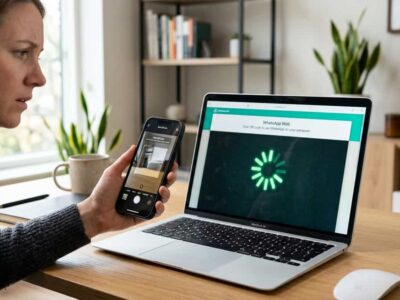
You’re using WhatsApp Web on your computer (or the desktop app) to stay productive. But suddenly, messages that appear on your phone don’t show up on the computer—sometimes for minutes, sometimes for hours. During the February 2026 WhatsApp outage, this was a widespread issue, but even outside of major outages, sync delays can be frustrating and disrupt your workflow.
The problem usually lies in one of three areas: network connectivity, app/browser state, or server‑side delays. In most cases, you can fix it yourself in a few minutes.
Why Does This Happen?
- Server‑Side Outages: WhatsApp’s servers occasionally experience interruptions, causing sync delays. The February 2026 outage affected users globally.
- Weak or Unstable Internet: Both your phone and computer need a stable connection to sync in real time.
- Outdated Apps or Browser: Old versions of WhatsApp, your browser, or the WhatsApp Desktop app may lack the latest sync protocols.
- Stale Session Data: Browser cache or app data can become corrupted, preventing real‑time updates.
- Phone Battery Saver / Background Restrictions: Aggressive battery optimization on Android or iPhone may prevent WhatsApp from syncing in the background.
- Linked Device Session Expired: If the session is no longer active, messages won’t sync until you re‑link.
- Browser Extensions Blocking WebSockets: Privacy extensions, ad blockers, or script blockers can interfere with the real‑time connection that keeps WhatsApp Web updated.
- Multi‑Device Architecture Nuance: Since 2023, WhatsApp uses a multi‑device design. Your phone no longer needs to be constantly online for the Web version to work, but it still periodically syncs to push historical data and encryption keys. If your phone hasn’t connected in a while, messages may be delayed.
Step‑by‑Step Solutions
1. Refresh WhatsApp Web or Desktop App
Sometimes the connection just needs a nudge.
- In a browser: Press F5 or click the refresh button. If messages appear after refresh, the real‑time WebSocket connection may have dropped.
- WhatsApp Desktop app: Close it completely (right‑click the system tray icon and select “Quit”), then reopen.
2. Re‑link Your Device
If refreshing doesn’t help, the session may have expired or become corrupted.
- On your computer, click the three‑dot menu (or gear icon) in WhatsApp Web, then select Log out.
- On your phone, open WhatsApp → tap Linked Devices → swipe left on the computer session and tap Log out.
- Re‑scan the QR code to pair again.
Pro Tip: After re‑linking, give it a minute—initial sync may take a few moments to catch up, especially if many messages arrived during the offline period.
3. Check Internet Connectivity on Both Devices
Sync requires both devices to be online, but thanks to multi‑device support, your phone doesn’t need to be constantly connected. However, it must occasionally go online to sync new message keys and history.
- On your phone, toggle Airplane Mode on and off, then open WhatsApp to verify messages are flowing.
- On your computer, try loading a different website. If it’s slow, restart your router or switch to a wired connection if possible.
- If you’re using a VPN or proxy, try disabling it temporarily—some networks block WhatsApp’s sync ports.
4. Update WhatsApp, Browser, and Desktop App
Outdated software is a common cause of sync issues.
- Phone: Update WhatsApp from the Google Play Store or Apple App Store.
- Browser: Update Chrome, Firefox, Edge, or Safari to the latest version.
- WhatsApp Desktop: Download the latest version from the official website or Microsoft Store.
5. Disable Battery Saver & Background Restrictions
Many phones restrict background activity to save battery, which can delay sync.
On Android:
- Go to Settings → Battery → Battery Saver → turn it off.
- Then go to Apps → WhatsApp → Battery → select Unrestricted.
On iPhone:
- Go to Settings → Battery → Low Power Mode → turn it off.
- Then go to Settings → WhatsApp → Background App Refresh → enable it.
6. Test in Incognito / Private Mode (Browser Extensions Check)
Privacy extensions, ad blockers (like uBlock Origin), and script blockers can interfere with the WebSocket connection that WhatsApp Web uses for real‑time updates.
- Open an Incognito/Private browsing window (Chrome: Ctrl+Shift+N; Firefox: Ctrl+Shift+P; Edge: Ctrl+Shift+N).
- Navigate to
web.whatsapp.comand log in. - If messages sync correctly in incognito mode, one of your extensions is blocking the sync. Try disabling extensions one by one or whitelist
web.whatsapp.com.
7. Clear Browser Cache or App Data
Stale cache can prevent real‑time updates.
For WhatsApp Web in a browser:
- Clear only the site data for
web.whatsapp.com. (In Chrome: click the lock icon → “Site settings” → “Clear data”.)
For WhatsApp Desktop app:
- Uninstall the app, then reinstall the latest version.
8. Check for Known Outages
If none of the above works, there may be a server‑side issue.
- Visit Downdetector or check WhatsApp’s official Twitter/X account.
- During the February 2026 outage, many users experienced sync delays for several hours. The only fix was to wait for WhatsApp to restore service.
Additional Resources
- Fix Outlook Error 0x800ccc0e – Cannot Connect to Server – general network troubleshooting that can also help diagnose connectivity issues.
- Fix Required Authentication Broker Missing in Outlook – similar permission‑related fixes for app connectivity.
- How to Connect AirPods to Laptop – understanding Bluetooth and device pairing principles (useful for general connectivity mindset).
Most WhatsApp Web sync issues are temporary and can be resolved by refreshing the session, re‑linking your device, or checking your internet connection. If a widespread outage like February 2026 is ongoing, patience is the only real solution—but the steps above will help you rule out any local problems.
Still having trouble? Let us know your device and browser details in the comments, and we’ll help you troubleshoot further.
Disclaimer: Always use the official WhatsApp Web or desktop client to avoid security risks.