Quick Fix Checklist
| Symptom | Primary Solution |
|---|---|
| Spinning circle for the QR code | Check your internet connection speed |
| Blank box where the code should be | Clear browser site data for whatsapp.com |
| “Retry” button appears immediately | Disable “Ad-Blocker” or “Script Blocker” extensions |
| QR code is blurry or distorted | Turn off “Dark Mode” or “Invert Colors” browser features |
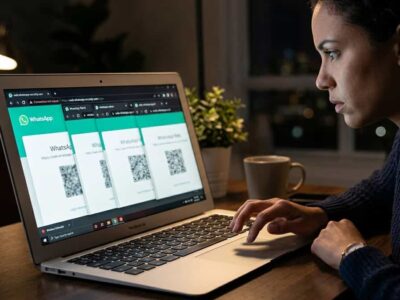
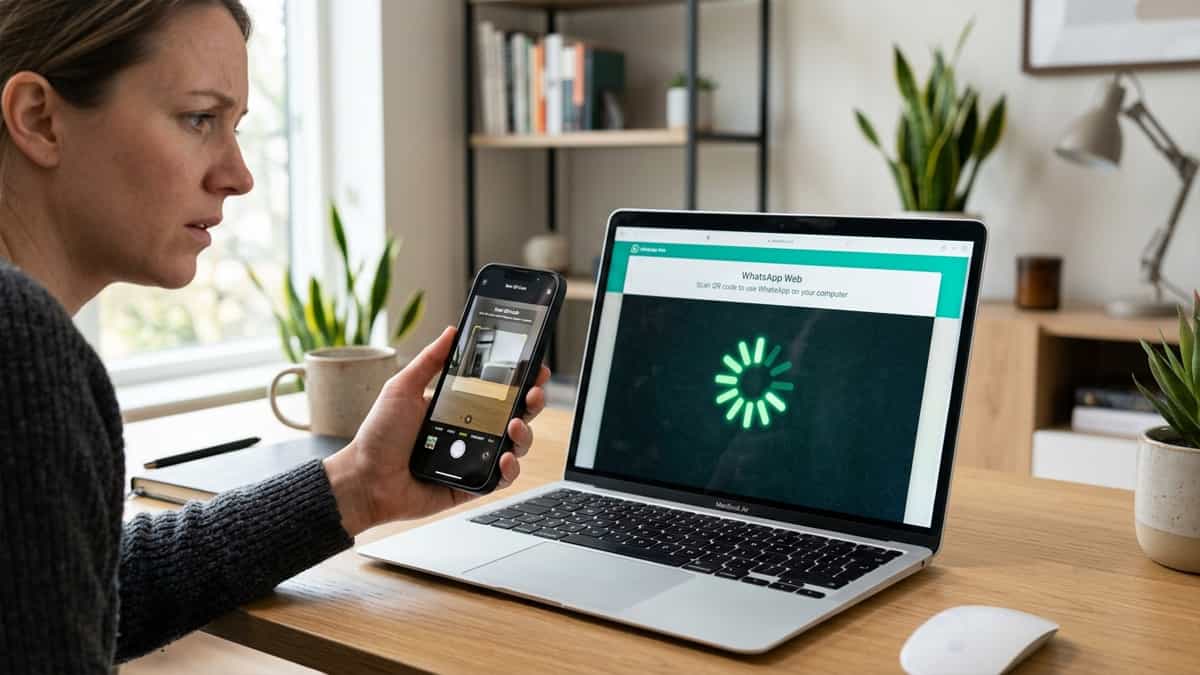
The “QR Code” is the doorway to your WhatsApp Web experience. When it fails to load, you are effectively locked out of your desktop chats. Many users in 2026 report that the page loads the sidebar and background but stays stuck on a spinning wheel where the QR code should be. This is usually due to a conflict between the modern “WebSocket” technology WhatsApp use to generate the code and your browser’s current security or cache settings.
Fortunately, a QR code generation failure is almost always a local browser glitch. Here is how to fix the “infinite loading spinner” and get your login code back.
1. Force a “Deep Refresh” (Clear Site Data)
If the QR code won’t generate, your browser is likely holding onto a “stale” version of the WhatsApp login script. A standard refresh (F5) isn’t enough; you need to wipe the site’s local memory to force it to pull a fresh copy of the QR generator.
- Click the lock icon next to the
web.whatsapp.comURL. - Select “Manage on-device site data” (or “Clear cookies and site data”).
- Remove all entries for
whatsapp.comandwhatsapp.net. - Refresh the page. A clean script should now load and generate the QR code in under 5 seconds.
2. Disable “Ad-Blockers” and “Privacy Shields”
Because the WhatsApp QR code is a dynamic, auto-refreshing image, some aggressive ad-blockers (like uBlock Origin or the Brave “Shields” feature) can misidentify its generation script as a tracking pixel and block it entirely. This results in a blank space or an infinite spinner.
- Temporarily disable your ad-blocker for
web.whatsapp.com. - Refresh the page. If the QR code appears, you need to “Whitelist” the WhatsApp domain in your extension’s settings.
3. Turn Off “Force Dark Mode” Extensions
Some “Dark Mode” extensions (like Dark Reader) manually “invert” the colors of every element on a page to make it readable at night. If your QR code is loading but looks “white on black” or “glitchy,” your phone’s camera won’t be able to de-code it. Ensure all color-inverting extensions are turned OFF while you are on the login screen.
4. Check Your “WebSocket” Connection
WhatsApp Web uses “WebSockets” to communicate between the server and your browser to keep the QR code fresh. If you are on a restricted corporate network, school Wi-Fi, or using a VPN, these “WebSockets” might be blocked. Try turning your VPN OFF or switching to your phone’s Mobile Hotspot to see if the QR code generates there. If it does, your Wi-Fi’s firewall is the roadblock.
5. Update Your Web Browser
Older versions of Chrome, Safari, and Firefox can struggle with the latest security handshakes needed for Multi-Device linking. Go to your browser Settings > About and ensure you are on the absolute latest version. A browser that is even a few months out of date can fail to run the modern QR generation scripts.
QR code generation failures are a temporary hurdle that can be cleared in under 2 minutes. By ensuring your browser’s site data is fresh and your ad-blockers aren’t over-blocking the site, you can bring back the login code and stay connected on your desktop. If all else fails, trying a different browser is the ultimate test to see if the problem is localized to your primary setup!