Quick Fix Checklist
| Symptom | Primary Solution |
|---|---|
| Chrome/Edge using 1GB+ RAM | Suspend inactive tabs using “Memory Saver” |
| PC fan spinning loudly | Turn off “Hardware Acceleration” |
| App lag when typing | Clear WhatsApp-specific site data and cache |
| Windows 10/11 “Memory Warning” | Use the WhatsApp Desktop app (Direct version) |
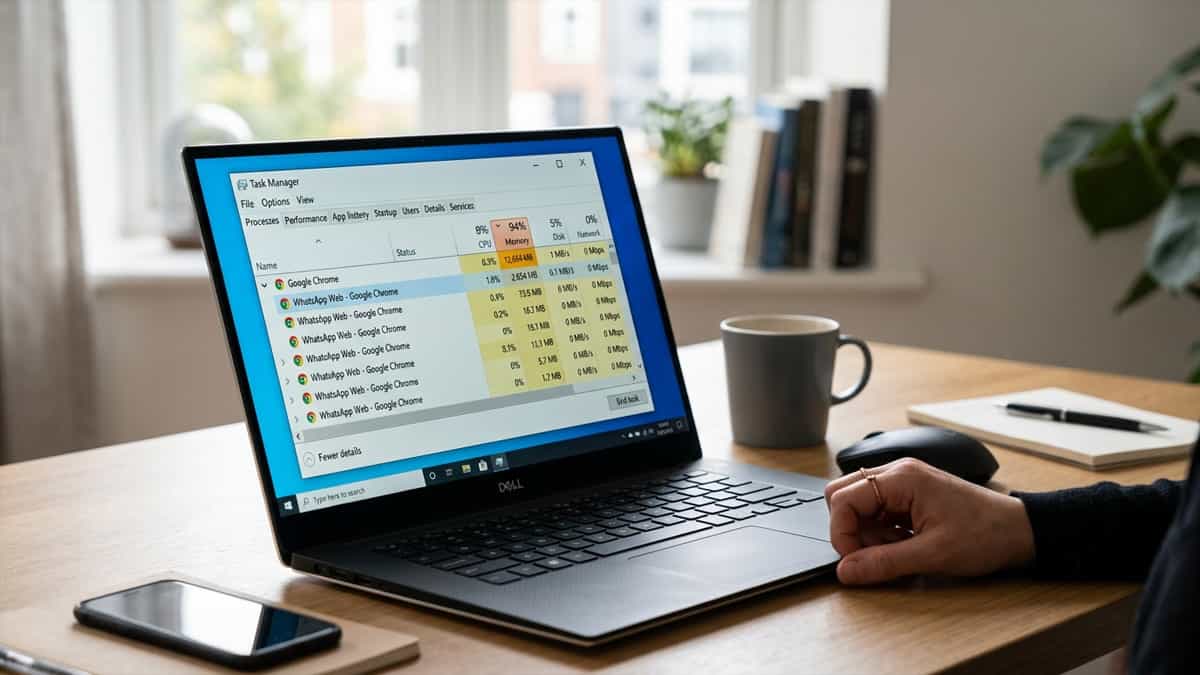
WhatsApp Web is a resource-intensive application. Because it runs complex real-time messaging scripts and handles thousands of media files, it can easily consume 500MB to 1.5GB of your computer’s RAM. If you have multiple tabs open or an older Windows PC, this “RAM Overload” can lead to a sluggish interface, delayed typing, and in extreme cases, a total system crash.
Fortunately, you don’t need to buy more RAM to keep your chats running smoothly. Here is how to optimize your Windows environment and limit WhatsApp Web’s memory footprint.
1. Enable “Memory Saver” in Chrome and Edge
Modern browsers like Chrome and Edge now have built-in “Memory Saver” features. This feature puts inactive tabs into a “Deep Sleep” mode, freeing up RAM for the tab you’re currently using (which should be WhatsApp).
- Chrome: Go to Settings > Performance. Toggle “Memory Saver” to ON.
- Edge: Go to Settings > System and performance. Toggle “Efficiency mode” to ON and ensure “Sleeping tabs” is active.
2. Turn Off Hardware Acceleration
In Windows, “Hardware Acceleration” tries to pass media processing tasks to your graphics card (GPU). While this sounds good, it often leads to excessive background memory usage on older graphics cards or integrated laptop GPUs. Turning it off can stabilize RAM usage.
- Go to your browser Settings > System.
- Toggle “Use hardware acceleration when available” to OFF.
- Relaunch the browser. You might notice the interface feels slightly less “fluid,” but your RAM usage will drop significantly.
3. Clear Stale Site Data and Media Cache
As you scroll through weeks of chat history, WhatsApp Web stores thousands of thumbnail images and “blobs” of data in your browser’s RAM. If you don’t clear this periodically, the memory usage will climb indefinitely.
- Click the lock icon next to the
web.whatsapp.comURL. - Go to “Manage on-device site data.”
- Remove all data for
whatsapp.com. - Refresh the page and log in again. This forces the browser to “flush” the old media bank.
4. Limit the Number of Group Chats
Massive group chats with hundreds of active participants are the biggest RAM consumers. Every message and notification in a group forces the browser to run a new “calculation.” If you’re in many active groups, consider archiving or muting the less important ones to reduce the background processing load on your computer.
5. Use the Standalone WhatsApp Desktop App (64-bit)
While a browser tab is versatile, it inherits the memory overhead of the entire browser engine. The official WhatsApp Desktop app for Windows is optimized to run as a single process. Many users find that the standalone app uses 20–30% less RAM than a Chrome tab for the exact same number of chats.
6. Check for Conflicting Browser Extensions
Some extensions—especially volume boosters, “Dark Mode” enforcers, or custom notification engines—manually “inject” code into your WhatsApp tab. This can cause a “memory leak” where the RAM usage never stops growing. Try opening WhatsApp in **Incognito** mode (Ctrl + Shift + N). If the RAM usage stays low, the problem is one of your extensions.
RAM overload doesn’t have to be the end of your desktop messaging. By tweaking your browser’s performance settings and ensuring you aren’t running redundant versions of the site, you can keep your Windows PC fast and your conversations flowing. For the ultimate speed boost, we recommend the native Windows app over a standard browser tab.