Quick Fix Checklist
| Symptom | Primary Solution |
|---|---|
| App closes immediately on launch | Update WhatsApp via the Mac App Store |
| Spinning beachball on startup | Delete the “Application Support” folder for WhatsApp |
| Crashes after waking from sleep | Turn off “Open at Login” in System Settings |
| Missing menus or visual glitches | Reset the app’s PLIST file using Terminal |
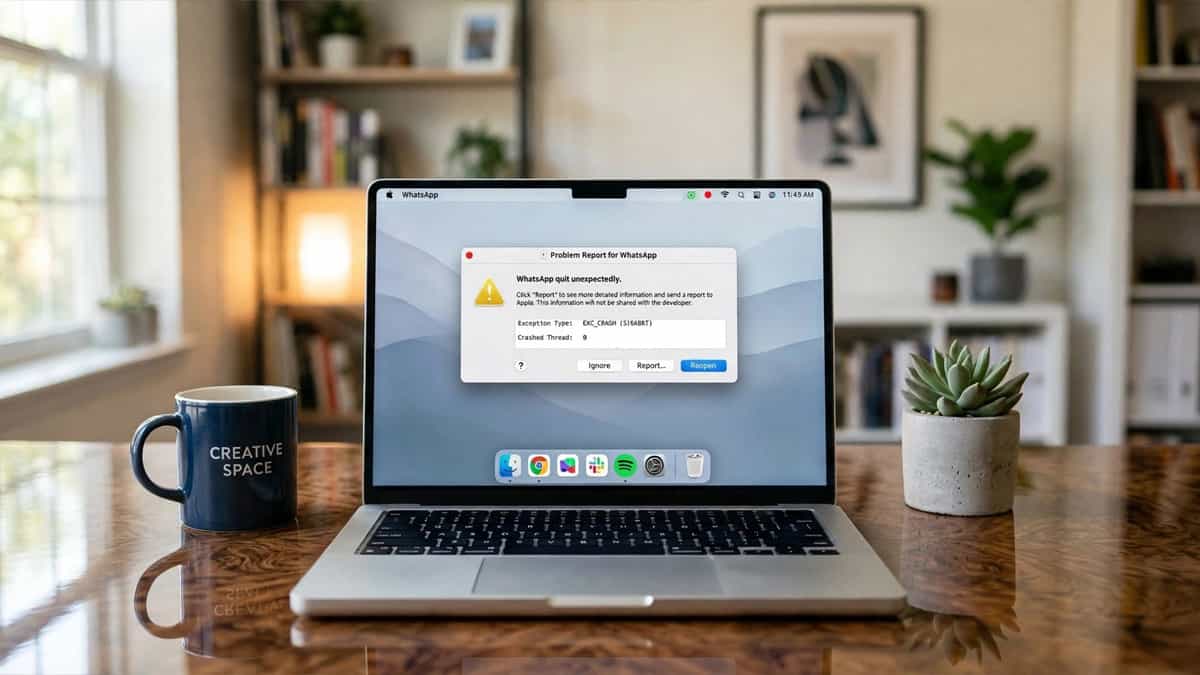
With the release of macOS Sonoma and Sequoia, many Mac users have noticed that the standalone WhatsApp Desktop app has become unstable. You might experience the “spinning beachball of death,” or the app might simply vanish (crash) the moment you try to click on a chat or a media file. This is usually due to a conflict between the new operating system’s memory management and the legacy code in older versions of the WhatsApp app.
Fortunately, you don’t have to switch to the browser-based version forever. Here is how to perform a deep-clean and fix WhatsApp Desktop crashes on the latest versions of macOS.
1. Perform a “Clean Reinstall” (Not just a Delete)
Simply dragging the WhatsApp icon to the Trash doesn’t remove the hidden configuration files that are likely causing the crash. You need to wipe the “stale” data folder where macOS stores the app’s state.
- Quit WhatsApp completely (Command + Q).
- Open Finder, then click Go in the top menu bar > Go to Folder…
- Type
~/Library/Application Support/and press Enter. - Find the folder named WhatsApp and move it to the Trash.
- Go back to Go to Folder… and type
~/Library/Preferences/. - Find
com.whatsapp.WhatsApp.plistand move it to the **Trash**. - Now, download and install a fresh copy of WhatsApp from the Mac App Store.
2. Update Your Mac App Store Version
Meta (WhatsApp’s parent company) frequently releases “hotfix” updates specifically for new macOS versions. If you downloaded WhatsApp directly from their website in the past, your auto-update might be failing.
- Open the App Store on your Mac.
- Click Updates in the sidebar.
- If WhatsApp is listed, click Update. The App Store version is generally more “sandboxed” and stable on Sonoma/Sequoia.
3. Disable “Open at Login”
In macOS Sonoma and Sequoia, there is a known bug where apps that try to launch before the system’s background services are fully initialized can trigger a silent crash. Preventing WhatsApp from starting automatically can solve this.
- Go to System Settings > General > Login Items.
- Find WhatsApp under the “Open at Login” list.
- Click the Minus (-) button to remove it.
- Restart your Mac and launch WhatsApp manually once the desktop has fully loaded.
4. Check for OCLP (OpenCore Legacy Patcher) Issues
If you are running Sonoma or Sequoia on an unsupported Mac using OCLP, the WhatsApp crash is likely due to a missing “Root Patch” for your graphics driver. WhatsApp uses hardware acceleration that requires a perfect match between your GPU and the OS.
- Open your OpenCore Legacy Patcher app.
- Click Post-Install Root Patch.
- If an update is available, apply it and restart your Mac. Many WhatsApp crashes on older Macs are resolved by this single step.
5. Use the WhatsApp Web Version (Temporary)
If you’re in the middle of a workday and the app refuse to cooperate, switch to WhatsApp Web (web.whatsapp.com) in Safari or Chrome. Since it runs inside your browser, it is immune to the system-level crashes affecting the standalone app. Use this as a bridge until the next WhatsApp software update is released.
System-wide crashes on a new macOS are frustrating, but they’re usually just a sign of “stale” cache files. By performing a clean reinstall and ensuring your login items are tidy, you can get WhatsApp Desktop running smoothly on Sonoma and Sequoia. If the problem persists, check for a “Safe Mode” boot to rule out other third-party app interference.