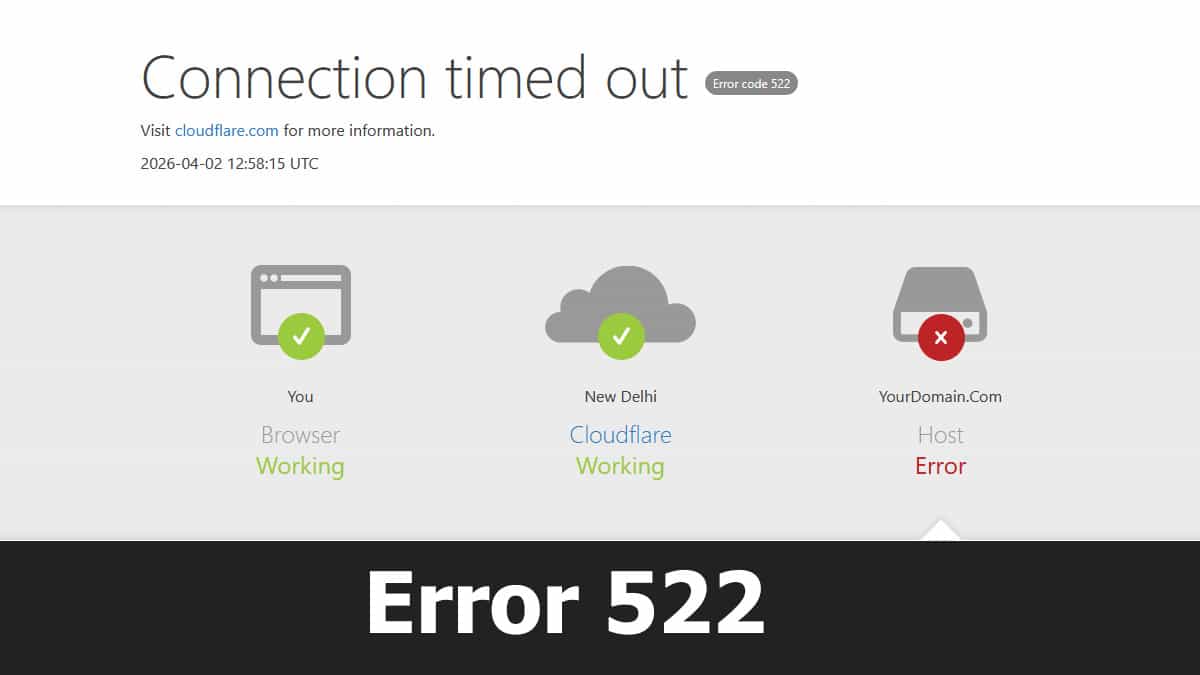
You see “Connection timed out (Error 522).” Your first thought: “My server must be dead.”
The truth: Your server could be perfectly online – but Cloudflare couldn’t finish the “handshake” in time.
This guide doesn’t just repeat “call your host.” You’ll learn 7 real fixes, including advanced ones (DNS loops, fail2ban, TLS handshake failures). And yes – sometimes the problem isn’t your server at all.
🔍 Step #0 – Check Status Pages First
(Do This Before Anything Else)
Before you touch a single setting, ask two questions:
1. Is Cloudflare having an issue?
→ Visit https://www.cloudflarestatus.com
Look for “HTTP/SSL” or “Cloudflare Dashboard” incidents. If there’s a confirmed outage, wait. Your site is fine.
2. Is my hosting provider doing maintenance?
→ Check your host’s status page (e.g., status.hostname.com), email notifications, or support Twitter.
Many 522 errors happen during scheduled maintenance or unplanned network upgrades.
⚠️ If either status page shows a problem, stop here. You don’t need to fix anything.
🧠 What Actually Happens in Error 522?
Cloudflare is the middleman between a visitor and your origin server.
To deliver your site, Cloudflare must complete a TCP handshake (SYN → SYN‑ACK → ACK) – think of it as knocking and waiting for the door to open.
Time limits:
- 19 seconds for the initial knock (SYN)
- 90 seconds after the door opens
If your server doesn’t respond within those limits → Error 522.
⚠️ Important: A 522 can also happen after the TCP handshake, during the TLS handshake (if you use HTTPS). The secure “password exchange” can timeout too – even if the door opened fine.
🔧 Fix #1 – Server Overload or Downtime (Most Common)
Your server might be drowning: CPU pegged, RAM full, or the web server (Apache/Nginx) crashed.
Fix:
- Log into your server control panel → check CPU/memory.
- Run
ping yourdomain.com– if no reply, your server is offline. - Upgrade hosting or optimize your site (caching, image compression).
🔥 Fix #2 – Firewall Blocking Cloudflare IPs (Very Common)
This is the #1 “hidden” cause.
Your firewall sees a flood of traffic from the same IPs (Cloudflare’s) and thinks it’s an attack – then blocks them. Even fail2ban or ModSecurity can do this automatically.
Fix:
Whitelist all official Cloudflare IP ranges in:
- Your hosting firewall (cPanel, iptables, CSF)
.htaccess(if using Apache)- Your security plugin (Wordfence, etc.)
💡 Pro tip: Contact your host and ask: “Are you blocking Cloudflare IPs via ModSecurity or fail2ban?”
📡 Fix #3 – Incorrect DNS Records
Your Cloudflare DNS A/AAAA record points to the wrong origin IP. Happens after a server migration.
Fix:
Go to Cloudflare Dashboard → DNS → check your A record.
Does it match your real server IP? If not → update and wait 5 minutes.
🔌 Fix #4 – KeepAlive Disabled (The Multiplier)
Without HTTP KeepAlive, Cloudflare must re‑establish a connection for every single file (images, CSS, JS). If your server is even slightly slow, those dozens of new “knocks” will eventually timeout.
Fix:
- Apache:
KeepAlive On - Nginx:
keepalive_timeout 65; - IIS: Enable HTTP Keep‑Alives
This alone rarely causes a 522, but it makes every other problem 10x worse.
🔒 Fix #5 – SSL/TLS Misconfiguration
Even if TCP works, the TLS handshake can fail (expired certificate, wrong Cloudflare SSL mode).
Fix:
- Install a valid SSL on your origin server.
- In Cloudflare → SSL/TLS → set Full (Strict).
- Never use “Flexible” unless you really know the risks.
🌐 Fix #6 – Network Path Issues (Packet Loss / BGP)
Sometimes Cloudflare and your host have a bad route between them – packet loss, flapping, or an upstream ISP issue.
Fix:
Run a traceroute or MTR from your server to 1.1.1.1.
If you see high loss → send the output to your hosting provider. They can reroute or escalate.
🌀 Fix #7 – DNS Loop with Cloudflare Workers (Advanced)
If you use a Cloudflare Worker that fetches your own hostname, you create a loop. Cloudflare will intentionally return a 522 to stop an infinite request storm.
Fix:
- Fetch a different hostname, or
- Enable the
global_fetch_strictly_publiccompatibility flag, or - Restructure your Worker to avoid self‑fetching.
This is a “pro” fix – but it’s saved many developers hours of debugging.
🧪 Quick Checks for Visitors (It Might Not Be Your Server)
Before you tear your hair out, try these:
- Clear cache + hard refresh (
Ctrl+F5/Cmd+Shift+R) - Switch networks (WiFi → mobile hotspot). If it works, the issue is your local network or ISP.
- Use a global uptime tool (Uptrends, DownDetector) – is the error everywhere or just you?
📞 When to Contact Your Hosting Provider
If you’ve tried fixes #1–7 and the error remains, contact support with:
- A traceroute/MTR from your server to Cloudflare
- A HAR file of the failing request
- Timestamps of when the error happens
That data gets you a real fix, not a generic “reboot your server” reply.
🔗 Related Resources from Mukunda Software
Timeouts don’t only happen on websites. If you’re dealing with connection issues elsewhere – or want to build a more resilient hosting foundation – these guides help:
- What is Cloud Hosting? Its Uses and Benefits – Understand why cloud infrastructure reduces timeout risks.
- What is Cloud Computing? Its Uses and Benefits – Broader context for scalable, always‑available apps.
- Website Security vs. SSL: What’s the Difference? – SSL misconfigurations are a top 522 cause.
- Fix: MSOutlook Error 0x8004210a POP Server Timeout – Timeout errors aren’t just for web servers. The logic of troubleshooting is the same.