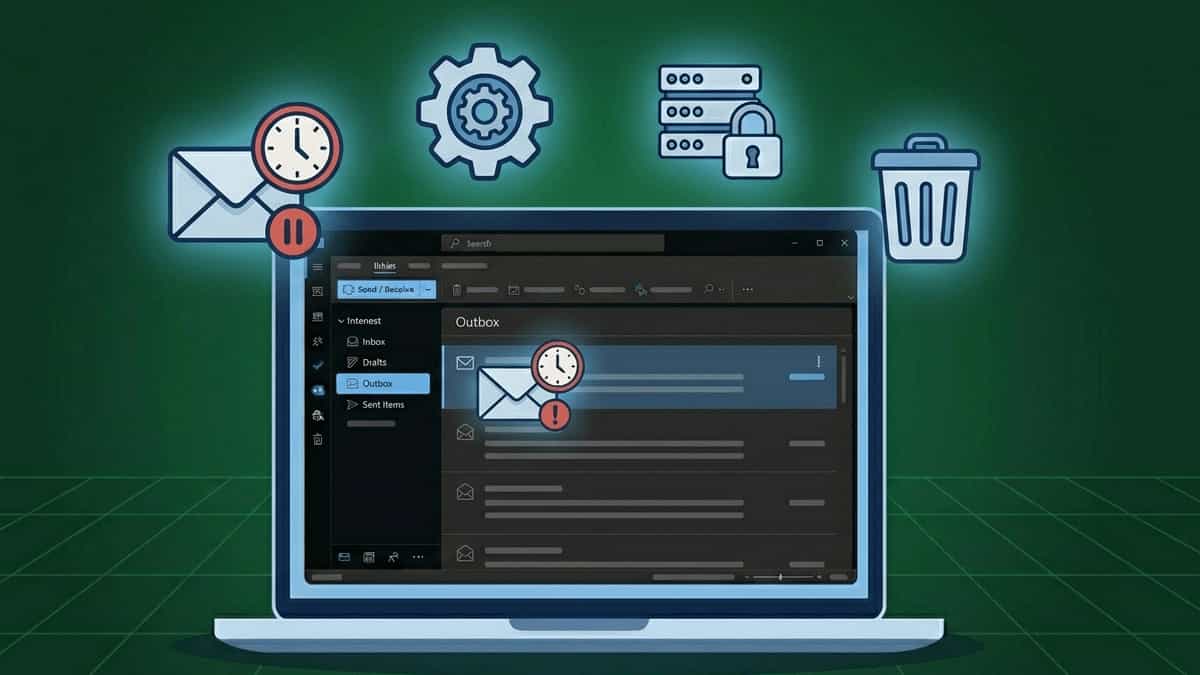
TL;DR: Emails stuck in Outbox usually mean Outlook can’t connect to the outgoing server or the message is corrupted. Try clearing the Outbox, disabling add‑ins, or checking SMTP authentication. Jump to Solution 1.
You’ve composed an email, clicked “Send,” but instead of moving to “Sent Items,” the message stays in the Outbox. Sometimes it shows “Sending…” forever; other times, it just sits there. This is one of the most common and frustrating Outlook issues.
The Outbox is a holding area for messages awaiting delivery. When emails get stuck, it’s usually because Outlook can’t complete the send operation. The good news is that the fix is often straightforward—though it may require a few steps.
What Causes Messages to Get Stuck in Outbox?
- Corrupt stuck message – The most common cause; a message that Outlook can’t process.
- Send/Receive groups disabled – The automatic send/receive schedule may be off.
- Offline mode accidentally enabled – Outlook is in “Work Offline” mode.
- Incorrect SMTP settings – Wrong port, encryption, or authentication.
- Large attachment exceeding server limits – Many providers cap attachment sizes.
- Modern authentication failure – OAuth2 token expired or app password incorrect.
- Add‑in interference – Some add‑ins block sending.
- Corrupt Outlook profile or PST – Profile or data file corruption.
How to Fix Emails Stuck in Outbox
Work through these solutions in order.
1. Clear the Outbox
The first step is to remove the problematic message.
- Go to the Outbox folder in Outlook.
- Check the message status:
- If the message is in italic, it’s queued to send.
- If it’s in bold, the user may have clicked back into it, and it’s not actually queued. Re‑open the message and click “Send” again to make it italic and start the send process.
- If it’s still stuck, right‑click the stuck message and select Delete.
(If you need the content, drag it to Drafts instead.) - Compose a new test email (short, no attachments) and send it.
- If the test sends, the original message was corrupted.
💡 Pro Tip: If the Outbox appears empty but Outlook still says “Sending…” in the status bar, switch to Work Offline (Send/Receive tab → Work Offline), restart Outlook, then go back online. This often flushes the stuck queue.
2. Check Send/Receive Groups
Outlook may not be trying to send automatically.
- Go to Send/Receive tab → Send/Receive Groups → Define Send/Receive Groups.
- Ensure Schedule an automatic send/receive every X minutes is checked.
- Verify Include this group in send/receive is checked for your account group.
- Click Close, then manually click Send/Receive All Folders.
3. Double‑Toggle “Work Offline” Mode
Sometimes the status bar lies. A forced reset can help.
- Go to Send/Receive tab and click Work Offline to turn it on.
- Wait 5 seconds.
- Click Work Offline again to turn it off.
- This forces Outlook to reset its network stack and re‑establish connections.
4. Verify SMTP Settings & Authentication
Incorrect outgoing server settings are a major cause.
- Go to File → Account Settings → Account Settings.
- Select your email account and click Change.
- Click More Settings → Outgoing Server tab.
- Check My outgoing server (SMTP) requires authentication.
(For most accounts, select Use same settings as my incoming mail server.) - Go to the Advanced tab and verify:
| Setting | Recommended Value |
|---|---|
| Outgoing Server | Your provider’s SMTP (e.g., smtp.gmail.com) |
| Port | 587 (STARTTLS) – preferred; 465 (SSL) – alternative |
| Encryption | STARTTLS (for 587) or SSL/TLS (for 465) |
⚠️ Important: Many ISPs block port 25. Always use port 587 or 465.
5. Handle Large Attachments Offline
When a message is too large, Outlook may get stuck in an infinite retry loop, constantly failing at 99%.
- Delete the large message while Outlook is Offline:
- Go to Send/Receive tab and turn Work Offline on.
- Go to the Outbox, delete the large message.
- Turn Work Offline off again.
(This prevents Outlook from trying to send it while you’re trying to delete it, which often results in “The operation cannot be performed.”)
- Check attachment limits: Most providers cap attachments at 25 MB. If you need to send larger files, use a file‑sharing service or compress the files.
6. Run Outlook in Safe Mode & Disable Add‑ins
A faulty add‑in can interfere with sending.
- Press Windows Key + R, type
outlook.exe /safe, and press Enter. - If sending works in Safe Mode, disable add‑ins:
- Go to File → Options → Add‑ins.
- At the bottom, select COM Add‑ins and click Go.
- Uncheck all add‑ins, restart Outlook normally, and test.
- Re‑enable them one by one to find the culprit.
7. Refresh Modern Authentication (OAuth2 / MFA)
In 2026, many stuck messages are caused by an expired OAuth2 token or a failed background MFA prompt. Outlook may silently fail in the Outbox instead of showing a login popup.
- Refresh the token via web login:
- Log into your email account via the web (e.g., outlook.com or Gmail).
- Complete any security prompts.
- Restart Outlook and test sending. This often “unfreezes” the desktop app’s connection.
- For Microsoft 365 / Exchange:
Go to File → Account Settings → Account Settings → select account → Change. Under Logon Information, ensure OAuth2 is selected. Click Repair to refresh the token. - For Gmail / Outlook.com / Yahoo:
If you use 2FA, generate a new App Password from your account security page and update it in Outlook.
8. Create a New Outlook Profile
Profile corruption can cause the Outbox to freeze.
- Close Outlook.
- Open Control Panel → Mail (Microsoft Outlook) → Show Profiles.
- Click Add, create a new profile, and set up your email account.
- Under “When starting Microsoft Outlook,” select Prompt for a profile.
- Open Outlook with the new profile. If sending works, you can make it the default.
9. Use the Microsoft Support and Recovery Assistant (SaRA)
SaRA can automatically diagnose send issues.
- Download the Microsoft Support and Recovery Assistant.
- Run it and select Outlook → I’m having trouble sending or receiving email.
- Follow the prompts. SaRA will test settings and offer repairs.
10. Check with Your Email Provider or IT Admin
If all else fails, the problem may be server‑side:
- Personal accounts: Contact your hosting provider. They can check if SMTP is blocked or if your account is throttled.
- Work/school accounts: Your IT department may have disabled SMTP AUTH or require specific authentication methods.
Related Reading from Mukunda Software
Explore our other Outlook troubleshooting guides:
- Fix: Outlook Error 0x80042109 – SMTP Connection Failure
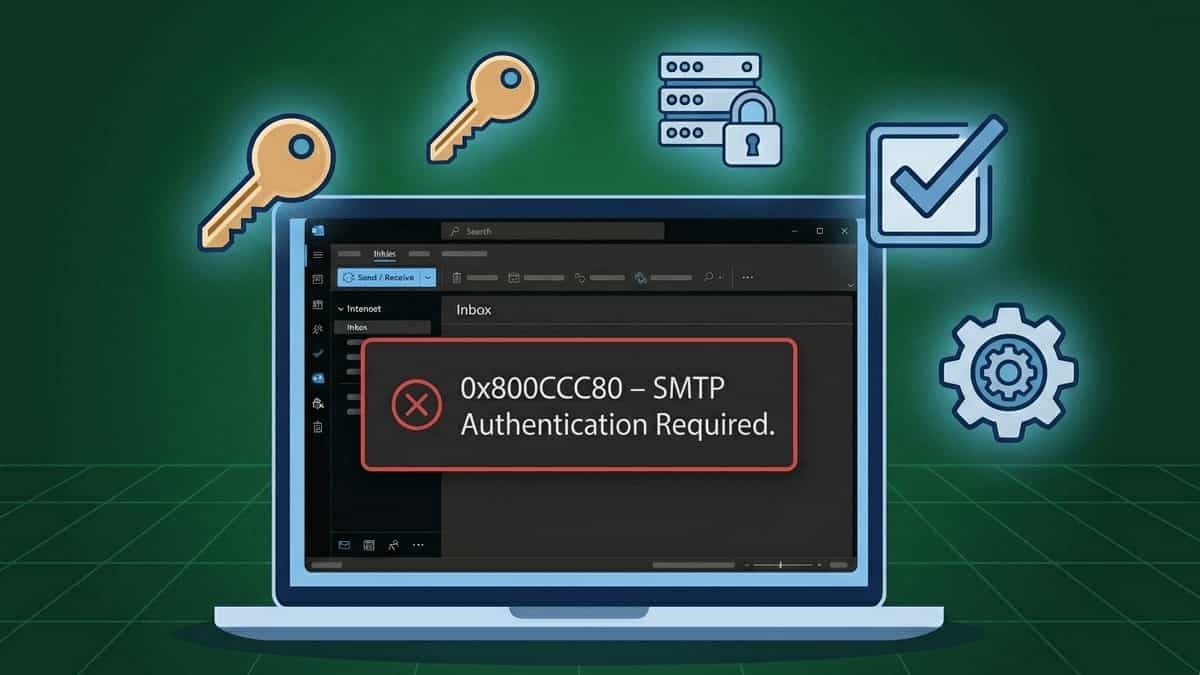
- Fix: Outlook Error 0x800CCC80 – SMTP Authentication Required
- Fix: Outlook Cannot Send/Receive at All
- Fix: Outlook Error 0x800CCC0F – Server Connection Interrupted
- Fix: Required Authentication Broker Missing