If you’ve ever seen a cryptic error about NormalEmail.dotm while using Microsoft Outlook, you’re not alone. This small but critical template file controls your email editor’s default settings, signatures, Quick Parts, and macros. When it becomes corrupted, read‑only, or misconfigured, Outlook can behave unpredictably.
Important – Which version of Outlook does this guide apply to?
This guide is for Classic Outlook (the traditional desktop app). The “New Outlook” (web‑based replacement for Windows) handles templates differently and does not use a local.dotmfile. If you are using New Outlook, the errors described here will not appear. This guide covers Microsoft 365, Outlook 2019, 2021, 2024, and earlier – all of which useNormalEmail.dotm.
In this guide, we’ll walk you through every real‑world problem related to NormalEmail.dotm – from “read‑only” save errors to missing Quick Parts – and give you clear, step‑by‑step solutions. We’ve also included links to other helpful Outlook troubleshooting articles from our blog.
First, a quick primer – If you’re not sure what
NormalEmail.dotmis or where to find it, read our detailed explainer:
👉 What is NormalEmail.dotm in Outlook?
Problem & Solutions
1. Corruption & Read/Write Access Issues
These are the most frequent problems. They usually appear after an Outlook crash, a Windows update, or a permission change.
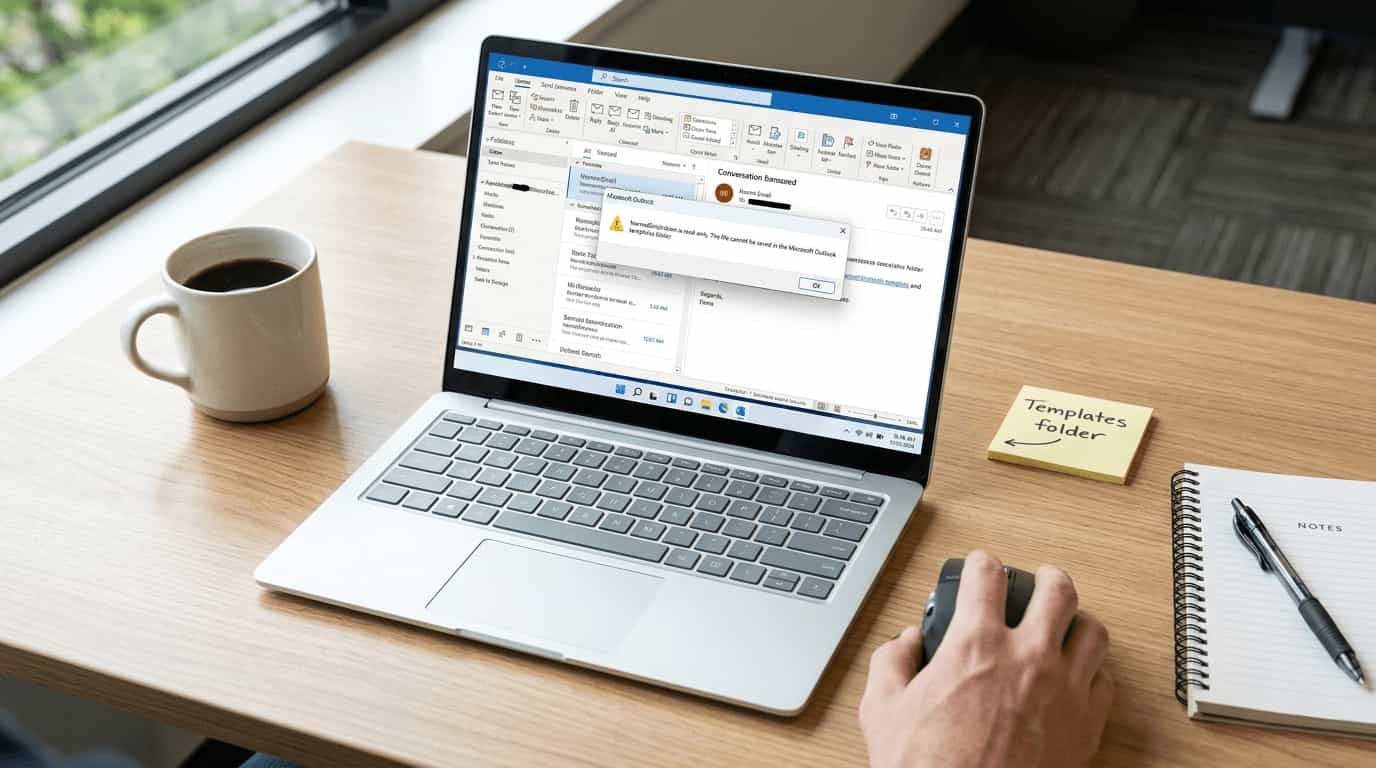
❌ “We can’t save this file because it’s read‑only”
- Error seen when: Closing Outlook or saving a template change.
- Cause: The
NormalEmail.dotmfile is marked read‑only, or another process (antivirus, add‑in) has locked it.
Solution – Force Outlook to recreate the template:
- Close Outlook and Word completely.
- Press
Win + R, type%appdata%\Microsoft\Templates, and press Enter.
Tip: You can also copy and paste this path directly into File Explorer’s address bar – it’s the fastest way to get there.
- Right‑click
NormalEmail.dotm→ Rename → change it toNormalEmail.old.- Restart Outlook. A fresh, clean
NormalEmail.dotmwill be created automatically.⚠️ Important – Macros & Quick Parts will reset
BecauseNormalEmail.dotmis macro‑enabled (the.mstands for macros), renaming it will delete any custom VBA macros or Quick Parts you’ve saved. If you have complex macros and can still open the VBA editor in Outlook, export them first (right‑click the module → Export File). Otherwise, keep a backup of your oldNormalEmail.oldfile.
If the error persists after recreating the file:
- Right‑click the new
NormalEmail.dotm→ Properties → uncheck Read‑only. - Check that the entire Templates folder itself is not read‑only or owned only by the SYSTEM account. Right‑click the
Templatesfolder → Properties → Security – ensure your user has “Modify” and “Write” permissions.
❌ “Outlook has detected a problem … Would you like to create a new template?”
- Cause: The existing template is corrupted beyond repair.
Solution: Follow the same renaming process above. Outlook will prompt you once, then generate a new file.
❌ “NormalEmail.dotm is locked for editing by another user”
- Cause: The file is stored on a network drive and another user (or your own previous session) hasn’t released it.
Solution:
- Ensure all users close Outlook.
- If the file is on a network share, ask your IT admin to identify who has it open.
- As a workaround, copy the template locally to
%appdata%\Microsoft\Templates.
2. Profile, Migration & Configuration Problems
These issues often appear after a domain migration, a new Outlook profile, or when folder redirection is active.
❌ “The file NormalEmail.dotm cannot be opened because there are problems with the contents”
- Cause: User profile corruption – common after a domain migration.
Solution:
- First, rename the template (as shown above). If that doesn’t help, create a new Outlook profile (Control Panel → Mail → Show Profiles → Add).
- Also check folder redirection policies – ensure the
Templatesfolder is fully accessible.
❌ Outlook prompts to save NormalEmail.dotm every time you close it
- Cause: A missing registry key that suppresses the save dialog, often on RDS or terminal servers.
Solution – Registry fix:
- Close Outlook.
- Open
regeditand navigate to:HKEY_CURRENT_USER\Software\Microsoft\Office\16.0\Word\Options\WordMail
(Note:16.0is the correct version for Microsoft 365 and Outlook 2019/2021/2024. For older versions like 2016, use16.0as well; for 2013, use15.0.) - Create a new DWORD (32‑bit) named
ATUserAddedand set its value to1. - Restart Outlook.
❌ Error references Normal.dotm (Word’s template) instead of NormalEmail.dotm
- Cause: Outlook uses Word as its email editor. Corruption in Word’s global template can spill over.
Solution:
Rename both files in %appdata%\Microsoft\Templates:
Normal.dotm→Normal.oldNormalEmail.dotm→NormalEmail.old
Then restart Outlook. Both templates will be rebuilt.
Related reading: If you also experience slow performance or crashes, check our guide on fixing Outlook when oversized PST files cause slowdowns.
3. Email Composition & Signature Errors
When NormalEmail.dotm is damaged, the email editor itself becomes unstable.
❌ Unusual formatting, typing lag, or random freezes
- Cause: Corrupted template affecting editor settings and macros.
Solution: Recreate the template (rename method in Section 1). This resolves 90% of editor glitches.
❌ Signatures missing or “A file error has occurred” when creating signatures
- Cause:
NormalEmail.dotmcorruption + sometimes permission issues in the signature folder.
Solution:
- Recreate the template.
- If signatures are still missing, go to
%appdata%\Microsoft\Signaturesand verify you have full read/write permissions. - Recreate your signature from scratch.
❌ “Outlook has insufficient memory – save NormalEmail as a Rescued Template?”
- Cause: A misleading error – it’s almost never about actual RAM. It usually points to a permission or profile corruption after a migration.
Solution:
- Rename the template.
- If the error returns, create a new Outlook profile.
- Also apply the
ATUserAddedregistry fix from Section 2.
4. Feature & Functionality Issues (Quick Parts, Macros, Settings)
These problems are frustrating because you lose your customised productivity tools.
❌ Quick Parts (Building Blocks) disappear after restarting Outlook
- Cause: Quick Parts are stored inside
NormalEmail.dotm. If the file is corrupt or read‑only, changes aren’t saved.
Solution:
- Recreate the template (rename method).
- Before recreating your Quick Parts, ensure the new
NormalEmail.dotmis not read‑only. - To back up your Quick Parts in the future, simply copy
NormalEmail.dotmto a safe location.
❌ “Save in” option for Quick Parts is greyed out
- Cause: A limitation in some Outlook versions – Quick Parts can only be saved to
NormalEmail.dotm, not to other templates.
Solution:
- There is no workaround other than using
NormalEmail.dotm. - If you need shared Quick Parts across a team, consider a third‑party add‑in or manually copy the template to each user.
❌ Custom macros or VBA scripts suddenly stop working
- Cause: The macro‑enabled template (
NormalEmail.dotm) was deleted or recreated, wiping your code.
Solution – Prevention is key:
- Always keep a backup of your customised
NormalEmail.dotm. - After recreating the template, re‑import your macros from the backup.
Pro tip: Many Outlook MAPI and folder errors are linked to template corruption. If you see errors like
0x8007000cor missing folders, read:
👉 Fix MSOutlook MAPI Error 0x8007000c
👉 Fix MSOutlook Folders Disappeared – Only Inbox Visible
5. Environmental & Security Issues
External software or network policies can interfere with NormalEmail.dotm.
❌ Antivirus blocks access – Outlook fails to read or write the template
- Cause: Real‑time scanning locks
.dotmfiles (especially macro‑enabled templates).
Solution:
- Add an exclusion in your antivirus for the folder:
%appdata%\Microsoft\Templates - Also exclude the process
outlook.exe. - Consult your IT security team before making changes.
❌ Templates on a network drive cause random errors
- Cause: Network latency or read‑only shares prevent Outlook from saving changes.
Solution:
- Move the templates folder to a local path.
- If roaming profiles are required, ensure the
Templatesfolder syncs correctly and has write permission.
❌ Windows update renames NormalEmail.dotm to .old
- Cause: A known bug in older updates (e.g., KB3124200) that “preserved” default templates by renaming them.
Solution:
Simply rename the file back to NormalEmail.dotm. Modern Windows updates no longer do this, but if you’re on an older version, apply the latest patches.
General Troubleshooting Workflow for “NormalEmail.dotm”
If you’re facing any of the above errors, follow this sequence:
- Close Outlook and Word – ensure no background processes are using the template.
- Locate the template – copy
%appdata%\Microsoft\Templatesinto File Explorer’s address bar. - Rename
NormalEmail.dotmtoNormalEmail.old - Restart Outlook – a fresh template will be created.
- Check file properties – make sure the new file is not read‑only.
- Check folder permissions – ensure your user has Modify rights on the
Templatesfolder. - If errors persist – create a new Outlook profile (Control Panel → Mail).
- Still stuck? – Apply the
ATUserAddedregistry fix and check antivirus exclusions.
Final note: NormalEmail.dotm is a small but mighty file. Most problems are solved by simply letting Outlook rebuild it. However, if you rely on custom macros or Quick Parts, always keep a backup. Bookmark this guide so you can quickly find the solution when an error appears.
Need More Outlook Help?
We’ve written detailed guides for many other Outlook errors. Here are a few you might find useful: