Making the switch from Microsoft Office on Ubuntu 24.04 is easier than ever, with a range of powerful and free alternatives available. This guide covers the top options, weighing their strengths and weaknesses to help you find the perfect fit for your workflow.
⚖️ Top MS Office Alternatives Compared
| Feature | 🥇 LibreOffice | 🥈 WPS Office | 🥉 ONLYOFFICE | FreeOffice | Collabora Office | Calligra Suite |
|---|---|---|---|---|---|---|
| Best For | All-around, default choice. | High MS compatibility. | Collaboration & modern UI. | Lightweight & speed. | Clean, tabbed interface. | KDE & creative work. |
| License | Open Source (MPL). | Proprietary (Free). | Open Source (AGPLv3) . | Proprietary (Free). | Open Source (MPL). | Open Source (GPL). |
| MS Compatibility | Very High (exports to MS). | Excellent (near‑perfect). | Excellent (pixel‑perfect). | Very High (full compatibility). | Very High (based on LibreOffice). | Moderate (inconsistent). |
| Key Components | Writer, Calc, Impress, Draw, Base, Math. | Writer, Spreadsheets, Presentation. | Docs, Sheets, Slides, PDF. | TextMaker, PlanMaker, Presentations. | Writer, Calc, Impress, Draw. | Words, Sheets, Stage, Karbon, Krita. |
| Learning Curve | Moderate (customizable). | Low (MS‑like UI). | Low (modern UI). | Low (MS‑like UI). | Low (tabbed, MS‑like UI). | Moderate (unique UI). |
| Installation | Pre‑installed or sudo apt install libreoffice. | .deb or Snap. | .deb, Snap, Flatpak. | .deb or via official repo. | .deb, Snap, Flatpak. | sudo apt install calligra. |
📝 Detailed Breakdown of Each Office Suite
1. 🥇 LibreOffice: The Open‑Source Standard
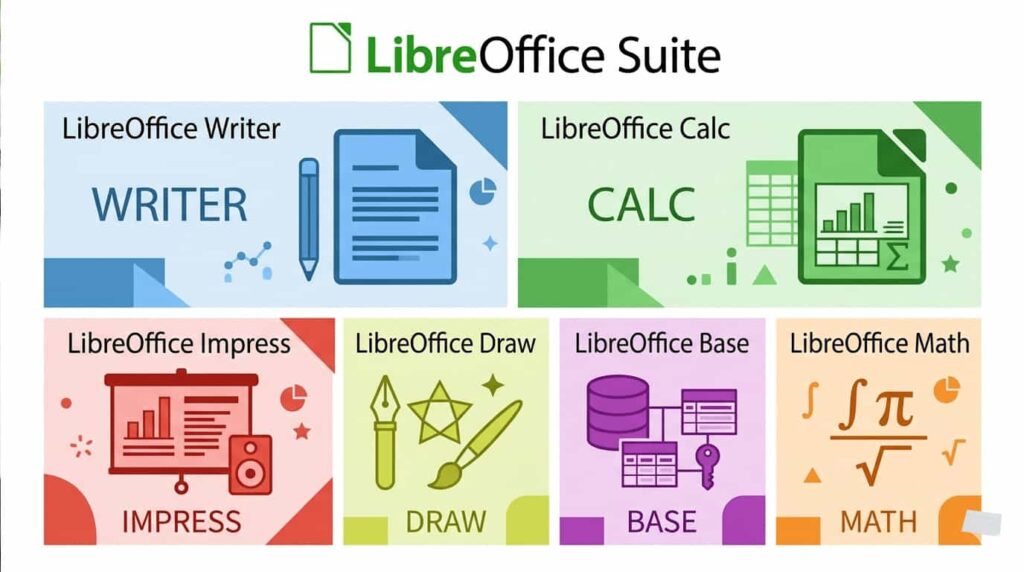
LibreOffice is the most widely used and often the default office suite on Linux, and for good reason. It’s a powerful, open‑source suite with a massive community, offering components for word processing (Writer), spreadsheets (Calc), presentations (Impress), and more. It has very high compatibility with MS Office and can even export to its formats. Its interface is highly customizable, allowing you to switch between a classic menu, a ribbon, or a sidebar.
Advantages:
- Free, open‑source & community‑driven: It’s completely free and benefits from a large, active community for support and development.
- Feature‑rich & highly customizable: Comes with a full suite of tools, including a database and drawing program, and its UI can be tailored to your preference.
- Excellent MS Office compatibility: Opens and saves files in Microsoft formats with great reliability.
Limitations:
- Default UI can feel dated: The standard layout might feel less modern compared to some competitors.
- Pixel‑perfect rendering not guaranteed: Layouts may shift slightly on different systems due to reliance on system fonts.
2. 🥈 WPS Office: The MS Office Look‑Alike
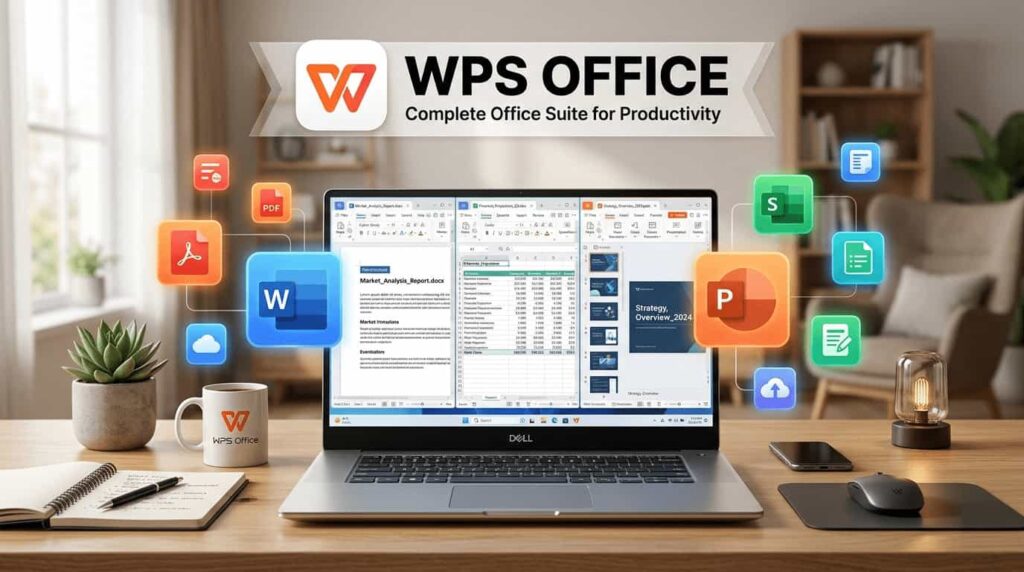
If you’re looking for an office suite that feels almost identical to Microsoft Office, WPS Office is your best bet. It’s designed to mimic the classic MS Office interface, making the transition from Windows seamless. Its primary strength is its outstanding compatibility with MS Office formats.
Advantages:
- Exceptional MS Office compatibility: Handles complex formatting, tables, and functions in
.docxand.xlsxfiles better than most. - Familiar ribbon interface: The user interface is a near‑clone of older MS Office versions, minimizing the learning curve.
- Completely free on Linux: While the Windows version has ads, the Linux version is free to download and use.
Limitations:
- Potential font rendering issues: Users have reported problems with some fonts displaying incorrectly on Linux.
- Not open source: It is proprietary software, which may be a concern for some users.
3. 🥉 ONLYOFFICE: The Modern Collaborator
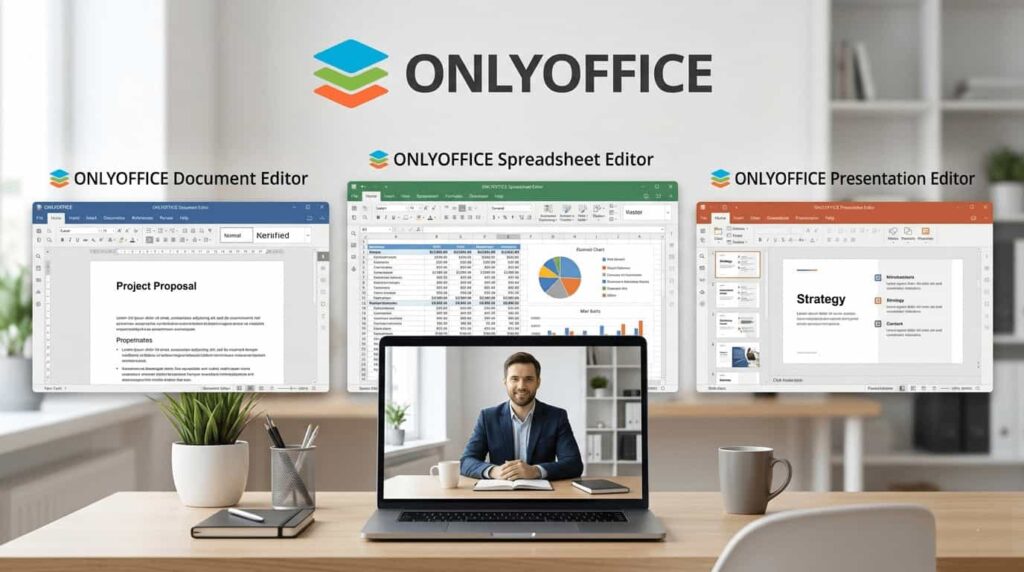
ONLYOFFICE is a strong, modern contender that has gained significant popularity. It features a clean, intuitive interface and is renowned for its excellent compatibility, aiming for pixel‑perfect rendering of MS Office documents. It also stands out for its built‑in real‑time collaboration features and a very capable PDF editor.
License note: The ONLYOFFICE Desktop Editors are open source (AGPLv3). You can find the code on GitHub. Only the enterprise/server versions are proprietary.
Advantages:
- Native OOXML support: Unlike others that “translate”
.docx, ONLYOFFICE uses it as its native format, ensuring maximum fidelity. - Clean, tabbed interface: A highly modern UI that avoids the clutter of older suites.
- Built‑in PDF editor & collaboration: You can edit PDFs natively, and it supports real‑time co‑editing of documents.
Limitations:
- Resource heavy: Can be slower to launch on older HDDs due to its web‑tech engine.
- Less mature than LibreOffice: Being a newer desktop application, it may have minor bugs or missing features compared to the more established LibreOffice.
4. FreeOffice: The Lightweight Speedster
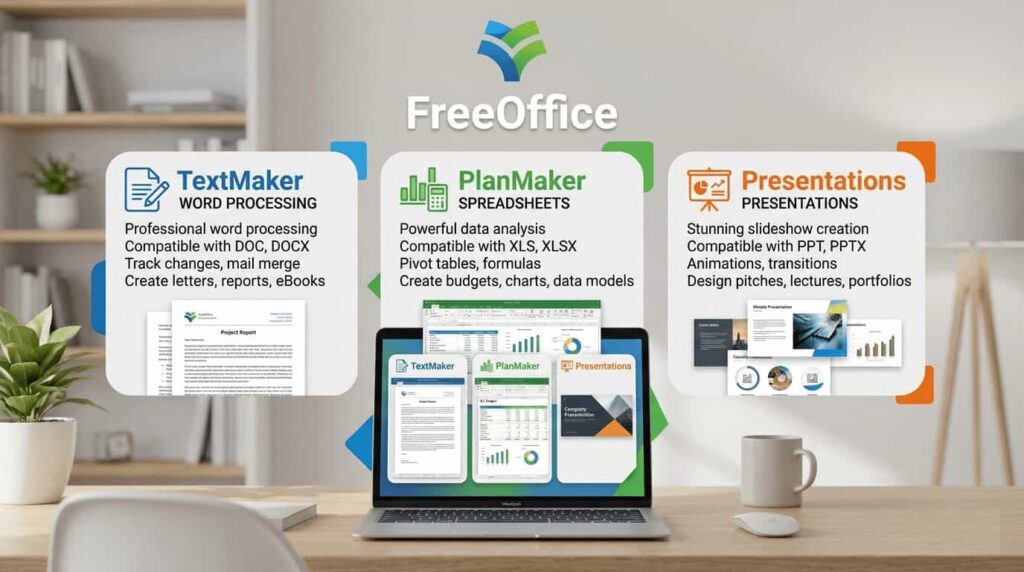
FreeOffice, developed by SoftMaker, is a completely free version of their commercial suite. It is designed to be fast, resource‑friendly, and highly compatible with Microsoft Office file formats, making it a great choice for older hardware. It includes TextMaker (Word), PlanMaker (Excel), and Presentations (PowerPoint).
Advantages:
- Fast & lightweight: Launches quickly and performs well even on modest systems.
- High MS Office compatibility: Offers full compatibility with the latest Microsoft Office formats, including support for complex Excel features.
- MS Office‑like interface: The user interface is similar to Microsoft Office’s ribbon, providing a comfortable environment for new users.
Limitations:
- Fewer features than competitors: The free version may lack some advanced features found in LibreOffice or commercial SoftMaker Office.
- Requires registration: A free email registration is required to download and use the software.
5. Collabora Office: LibreOffice with a Fresh Coat of Paint

Collabora Office is based on the same code as LibreOffice but offers a significantly revamped and modern user interface. It’s designed to feel more like Microsoft Office with a tabbed toolbar, making it more intuitive for new users while retaining the power and compatibility of LibreOffice.
Advantages:
- Modern, tabbed interface: A clean, well‑organized UI that is a significant departure from LibreOffice’s default look.
- Based on LibreOffice: You get all the power, stability, and MS Office compatibility of LibreOffice under the hood.
- Free for Linux: The desktop version is currently offered for free on Linux, Windows, and macOS.
Limitations:
- Less mature than LibreOffice: Being a newer desktop application, it may have minor bugs or missing features.
- Smaller community: As a newer project, its community and online resources are not as vast as LibreOffice’s.
6. Calligra Suite: The Creative’s Choice (KDE Native)
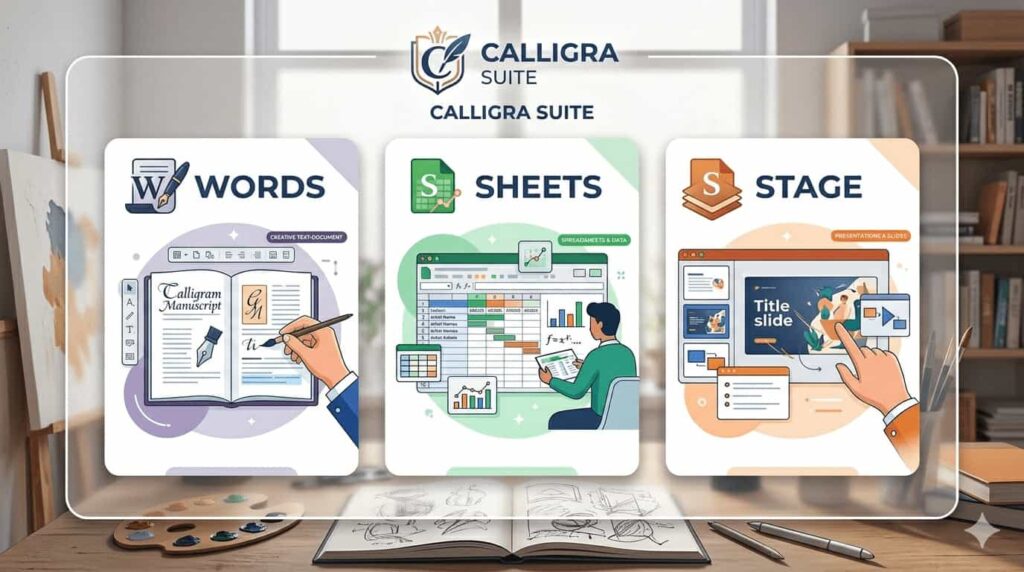
Calligra Suite is the native office suite for the KDE Plasma desktop environment, though it can be used on any Linux distribution. It stands out by including creative tools like Krita for digital painting and Karbon for vector graphics alongside standard office applications like Words and Sheets.
Advantages:
- Includes creative tools: Bundles powerful applications like Krita, making it an excellent choice for artists and designers.
- Native KDE integration: It feels right at home on KDE Plasma, offering a consistent look and feel.
- Free & open source: It’s completely free and open‑source software.
Limitations:
- Subpar MS Office compatibility: Struggles to accurately render complex Microsoft Office proprietary formats.
- Bloated on non‑KDE systems: Installing it on GNOME or other desktops may pull in over 100 KDE dependencies.
7. Google Docs: The Cloud‑Native Choice
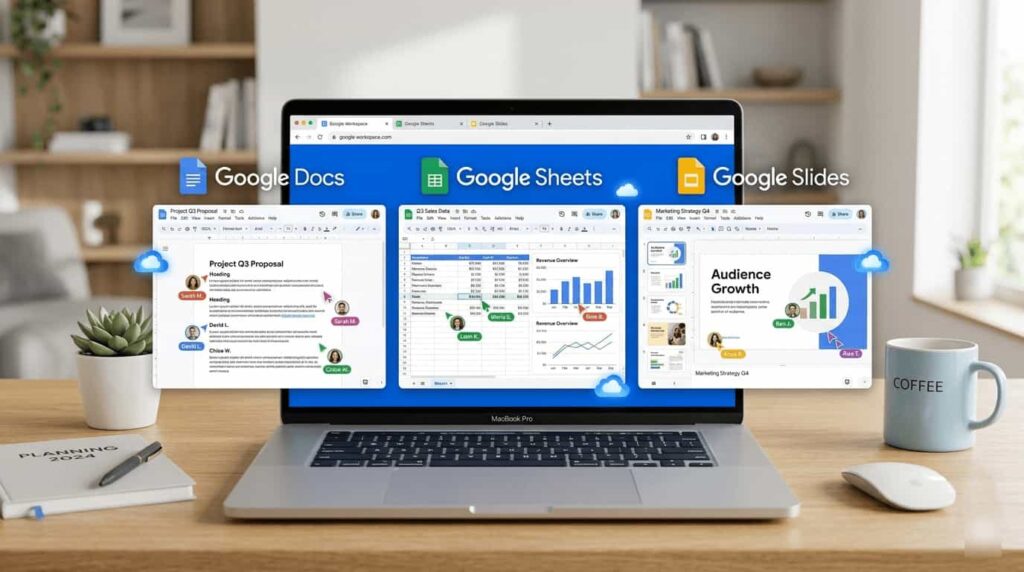
If your work is primarily online, Google Docs is a popular and capable choice. While not a native Linux application, it runs perfectly in any web browser on Ubuntu.
Advantages:
- Zero installation: Perfect for users who don’t want to manage local packages or dependencies.
- Excellent real‑time collaboration: Designed for multiple users to work on the same document simultaneously.
- Automatic cloud backup: All documents are saved to Google Drive, so you never have to worry about data loss.
Limitations:
- Requires an internet connection: It is completely unusable without an active connection.
- Privacy concerns: Unlike local suites, your data lives on Google’s servers, which may not suit sensitive professional work.
- Limited offline editing: Offline access is possible only with a Chrome extension and is not seamless.
✅ Ensuring Full Compatibility: Installing Microsoft Fonts
To make any office suite work flawlessly with MS Office documents, you need the same fonts (like Arial, Times New Roman, and Calibri). Without them, a document may look completely different on your screen than intended. You can easily install these on Ubuntu with a single command:
- Open a Terminal and run:
sudo apt install ttf-mscorefonts-installerPro‑Tip: When the purple EULA screen appears in the terminal, use the Tab key to select “Ok” and press Enter. Many new users get stuck here!
- Update the font cache:
sudo fc-cache -f -vAfter this, any office suite on your system will be able to use these standard Microsoft fonts, greatly improving the visual fidelity of any documents you open.
💎 Summary & Recommendation
For most users, LibreOffice is the recommended starting point. It’s a robust, feature‑complete suite that’s free, open‑source, and ready to go.
However, your choice should depend on your specific needs:
- For maximum Microsoft Office compatibility, choose WPS Office.
- If you want a modern, collaborative suite with excellent design, try ONLYOFFICE.
- For a fast, lightweight option on older hardware, FreeOffice is a great pick.
- KDE users or those who want creative tools should explore Calligra Suite.
Ultimately, you can install and test several of these free suites to see which one fits your workflow best.
🔗 More Helpful Guides from Mukunda Software
If you’re setting up Ubuntu or troubleshooting other software, these related articles might help:
- 👉 Ubuntu 24.04 System Requirements – Complete Guide
- 👉 Ubuntu 24.04.3 LTS Review – Features & Install Guide
- 👉 Comparing the Best OS for Programming and Development
- 👉 Windows 11 System Minimum Requirements – CPU, TPM Guide
- 👉 How to Fix ‘There Has Been a Critical Error on This Website’ in WordPress
Final note: All the office suites listed above are completely free to use on Ubuntu 24.04. Test a couple to see which interface and feature set you like best – and don’t forget to install the Microsoft fonts for the best possible document fidelity.