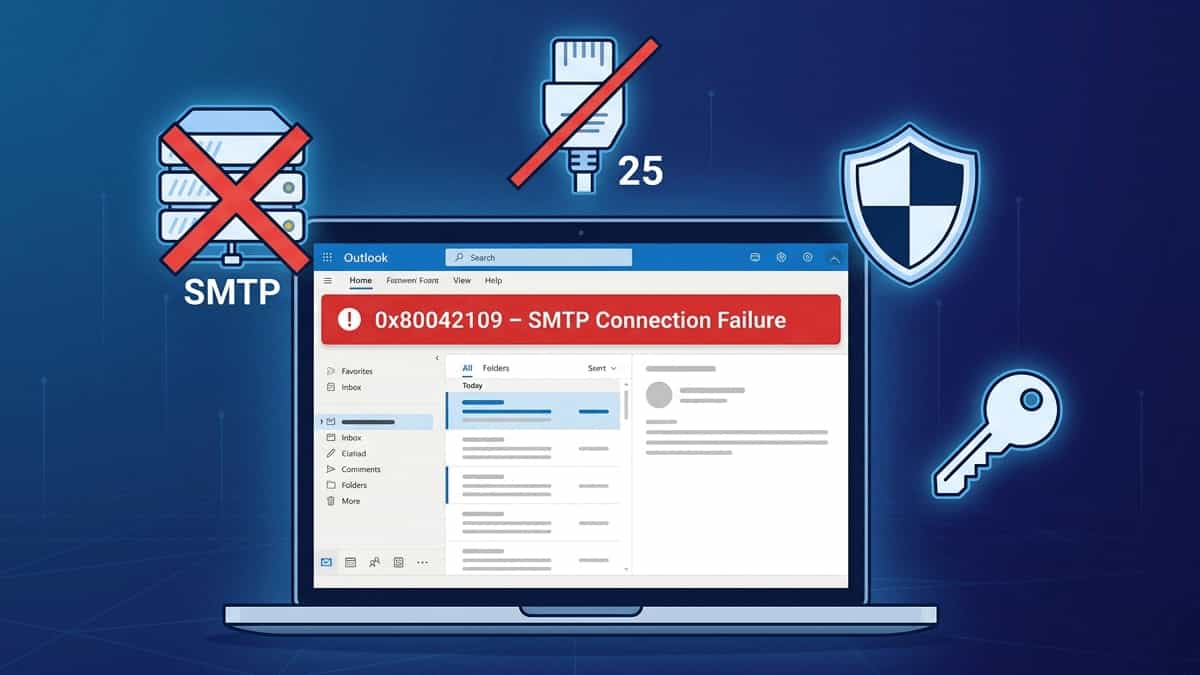
TL;DR: Error 0x80042109 means Outlook can’t reach your outgoing mail server. The fix is usually switching to Port 587 with STARTTLS and enabling SMTP authentication (or using an app password/OAuth2). Jump to Solution 3.
Few things are more frustrating than being able to receive emails but unable to send them. If you see the error:
“Task ‘your email address’ reported error (0x80042109): ‘Cannot connect to the outgoing (SMTP) mail server. If you continue to receive this message, contact your server administrator or Internet service provider (ISP).’”
…your Outlook is failing to establish a connection with the SMTP (outgoing) server. This problem can be caused by incorrect settings, firewalls, or ISP restrictions. The good news—it’s almost always fixable.
What Causes Error 0x80042109?
The error is specific to the outgoing mail server. Common triggers:
- ISP blocking port 25 – Many residential ISPs block port 25 to prevent spam.
- Incorrect SMTP port or encryption – Using the wrong combination (e.g., 25 with SSL) will fail.
- Missing SMTP authentication – Most modern servers require authentication before sending.
- Modern authentication issues – Gmail, Outlook.com, and Office 365 now require OAuth2 or App Passwords; a simple password often fails.
- Firewall or antivirus blocking – Security software may treat outgoing SMTP traffic as suspicious.
- Outdated or corrupt Outlook profile – Profile corruption can disrupt server settings.
- Stuck message in Outbox – A corrupt or oversized email can lock the SMTP connection.
- Network/VPN issues – Corporate VPNs sometimes interfere with SMTP traffic.
How to Fix Outlook Error 0x80042109
Work through these solutions in order. Keep your email provider’s SMTP settings handy.
1. Check Your Internet & Network Stability
A simple but overlooked cause.
- Ensure you’re online—browse a website.
- If you’re on a VPN, disconnect and test. Some VPNs block SMTP.
- Try a different network (e.g., mobile hotspot) to see if your ISP is blocking SMTP ports.
2. Temporarily Disable Antivirus & Firewall
Security software can block outgoing SMTP connections.
- Antivirus: Disable it temporarily and test.
- Windows Firewall: Go to Control Panel → Windows Defender Firewall → Allow an app or feature. Ensure Microsoft Office Outlook is checked for Private and Public networks.
If the error disappears, add an exception for outlook.exe or configure your security software to allow SMTP traffic (ports 25, 587, 465).
3. Verify SMTP Settings & Ports
This is the most common fix. Incorrect settings are the leading cause of 0x80042109.
- In Outlook, go to File → Account Settings → Account Settings.
- Select your email account and click Change.
- Click More Settings → Advanced tab.
- Verify the following outgoing server (SMTP) settings:
| Setting | Port & Encryption | SSL/TLS Mode |
|---|---|---|
| Port 587 | STARTTLS (Explicit SSL) | Modern standard – preferred |
| Port 465 | SSL/TLS (Implicit SSL) | Still used by many hosting providers |
| Port 25 | Usually no encryption | Avoid – often blocked by ISPs |
📌 Important: Many ISPs block port 25 to prevent spam. If you are using port 25, switch to 587 (STARTTLS). This is the instant fix in many cases.
4. Enable SMTP Authentication (and Handle Modern Auth)
Even with the correct ports, if authentication is missing, the server will refuse the connection.
- In the same More Settings window, go to the Outgoing Server tab.
- Check My outgoing server (SMTP) requires authentication.
- Select Use same settings as my incoming mail server (or enter your login credentials explicitly if required).
⚠️ Modern Authentication (OAuth2 / App Passwords)
- For Gmail, Outlook.com, Office 365, and Yahoo: If you have Two‑Factor Authentication (2FA) enabled, a standard password will not work. You must:
- Ensure your Outlook account type is set to OAuth2 (available in newer Outlook versions under Account Settings → Change → Logon Information).
- Alternatively, generate an App Password from your email provider’s security settings and use that in place of your regular password.
- For Exchange / Microsoft 365: Make sure OAuth2 is selected as the authentication method; basic authentication is being phased out.
- Click OK and test send.
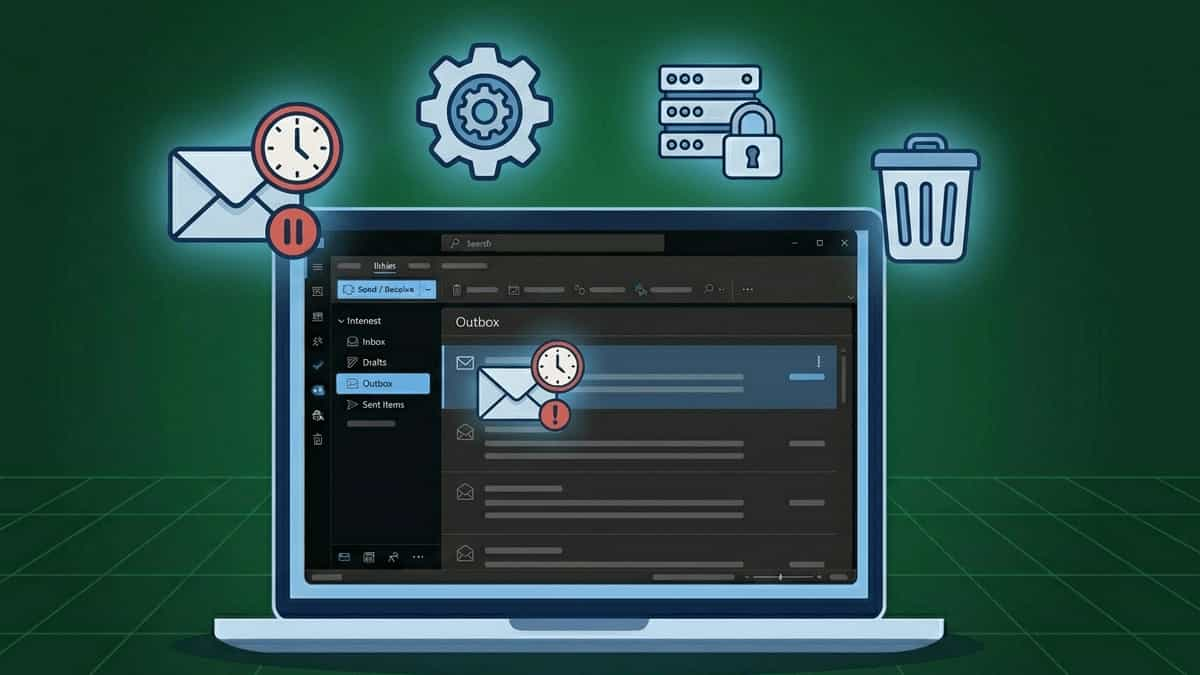
5. Clear the Outbox
A corrupt or oversized email stuck in your Outbox can lock the SMTP connection, causing the error to persist even after fixing settings.
- In Outlook, go to the Outbox folder.
- Delete any unsent messages (or move them to Drafts).
- Compose a new, simple test email and try sending again.
💡 Why this helps: Outlook sometimes retains a “stuck” connection attempt. Removing the offending message forces a fresh handshake with the SMTP server.
6. Increase Server Timeout
A slow server may time out before authentication completes.
- In the Advanced tab (same location), find Server Timeouts.
- Move the slider to Long (5 minutes).
- Click OK and test sending.
7. Create a New Outlook Profile
Corrupt profiles can silently break SMTP settings.
- Close Outlook.
- Go to Control Panel → Mail (Microsoft Outlook) → Show Profiles.
- Click Add, create a new profile, and set up your email account.
- Under “When starting Microsoft Outlook,” select Prompt for a profile.
- Open Outlook with the new profile and test sending.
8. Use the Microsoft Support and Recovery Assistant (SaRA)
SaRA can diagnose SMTP connection issues automatically.
- Download the Microsoft Support and Recovery Assistant.
- Run the tool and select Outlook → I’m having trouble sending or receiving email.
- Follow the prompts. SaRA will test your SMTP settings and suggest fixes.
9. Check with Your Email Provider or IT Admin
If none of the above work, the problem may be on the server side:
- Personal accounts: Contact your email hosting provider. Confirm the correct SMTP server name, ports, and whether authentication is required.
- Work/school accounts: Your IT department may have changed SMTP settings or implemented new security policies (e.g., requiring OAuth2 instead of basic authentication).
Related Reading from Mukunda Software
If you’re troubleshooting other Outlook issues, these guides from our blog may help: