TL;DR: Error 0x800CCC0F means the connection to your mail server was lost mid‑operation. Often caused by unstable networks, firewall blocks, or server timeouts. Jump to Solution 4 to check your ports and encryption.
Few email errors are as disruptive as the sudden “Server Connection Interrupted” message. You’re in the middle of sending or receiving, and Outlook halts with:
“Task ‘your email address’ reported error (0x800CCC0F): ‘The connection to the server was interrupted. If this problem continues, contact your server administrator or Internet service provider (ISP).’”
This error indicates that the connection between Outlook and your mail server was unexpectedly dropped. It can happen with POP3, IMAP, or SMTP and is often intermittent. The good news is that it’s almost always fixable with the right steps.
What Causes Error 0x800CCC0F?
The error is a catch‑all for lost connections. Common triggers include:
- An unstable internet connection (Wi‑Fi drops, VPN flapping).
- Firewall or antivirus software that terminates the connection mid‑session.
- Incorrect server settings (especially port numbers or encryption mismatches).
- A stuck or oversized message in your Outbox that times out the server.
- Server‑side timeouts (e.g., the server closes the connection too quickly).
- Corrupt Outlook profile or send/receive settings.
How to Fix Outlook Error 0x800CCC0F
Work through these solutions in order. Most are quick to try.
1. Check Your Internet Stability
A flaky connection is the most common cause.
- If you’re on Wi‑Fi, try switching to a wired Ethernet connection.
- Restart your router and modem.
- If you’re on a VPN, disconnect and test without it. Some corporate VPNs drop idle connections.
- Run a continuous ping to your mail server to see if packets drop.
📌 Pro Tip – MTU Size: If you’re on a restricted network (hotel, airplane, or certain corporate Wi‑Fi), the Maximum Transmission Unit (MTU) can cause large packets (like emails with attachments) to be dropped. In Windows, you can test with
ping -f -l 1472 yourserver.com. If it fails, lowering the MTU in your router or network adapter settings may resolve the issue. This is a common hidden cause of “interrupted” errors.
2. Temporarily Disable Antivirus & Firewall
Security software can kill Outlook’s connection mid‑stream.
- Antivirus: Right‑click your antivirus icon in the system tray and choose Disable (or Pause protection) temporarily. Try sending/receiving again.
- Windows Firewall: Go to Control Panel → Windows Defender Firewall → Allow an app or feature through Windows Defender Firewall. Ensure Microsoft Office Outlook is checked for both Private and Public networks. If not, click Change settings and add it.
If the error disappears after disabling, add an exception for outlook.exe in your security software.
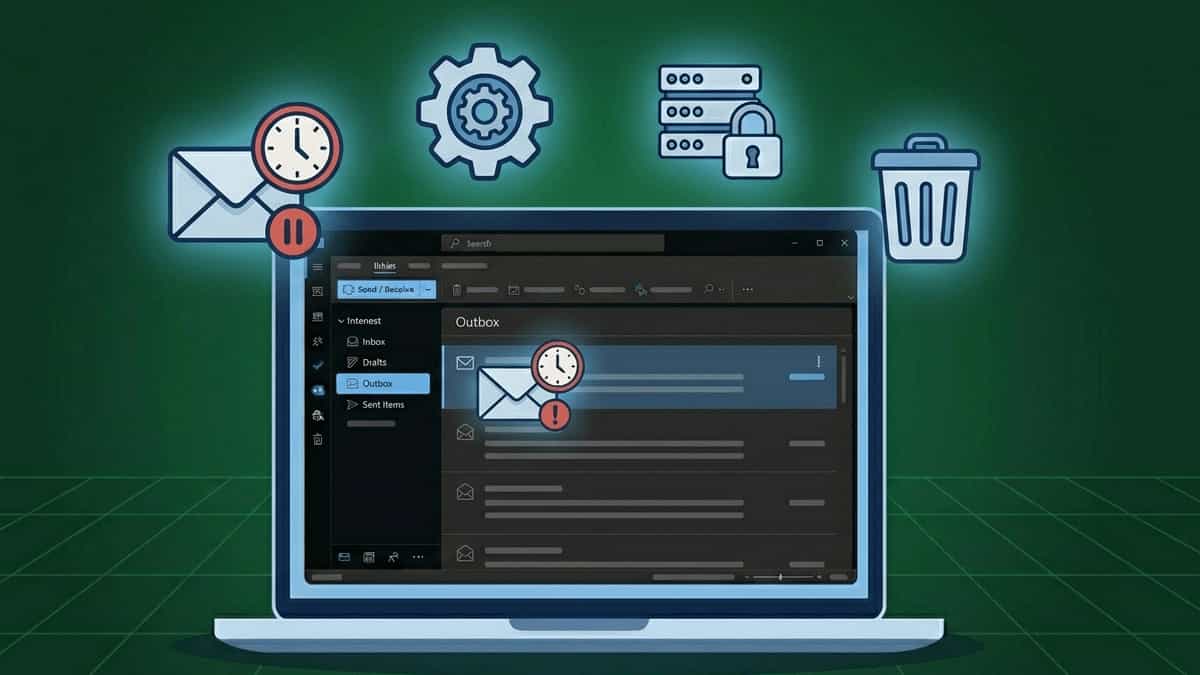
3. Clear the Outbox
A corrupted or oversized email stuck in your Outbox can cause the connection to time out.
- In Outlook, go to the Outbox folder.
- If you see any messages that won’t send, move them to Drafts or delete them.
- If the Outbox appears empty but the error persists, use Send/Receive → Work Offline, then restart Outlook and go back online.
4. Verify Server Settings & Ports
Incorrect ports or encryption settings can cause the server to drop the connection.
- In Outlook, go to File → Account Settings → Account Settings.
- Select your email account and click Change.
- Click More Settings → Advanced tab.
- Verify the following recommended values:
| Setting | Recommended Value |
|---|---|
| Incoming Server | mail.yourdomain.com or as provided |
| Outgoing Server | Same as incoming or SMTP server |
| Incoming Port | IMAP: 993 (SSL/TLS); POP3: 995 (SSL/TLS) |
| Outgoing Port | 587 (STARTTLS) or 465 (SSL/TLS) |
| Encryption | SSL/TLS or STARTTLS (no “None”) |
⚠️ Important – Port 25 Warning
Many ISPs now block Port 25 to prevent spam. If you are using Port 25 for outgoing mail, switching to Port 587 (STARTTLS) is often the instant fix.
- Click the Outgoing Server tab. Check “My outgoing server (SMTP) requires authentication” and select Use same settings as my incoming mail server.
- Click OK and test send/receive.
5. Increase Server Timeout
If your server takes a little longer to respond, increasing the timeout can prevent premature disconnection.
- In the same Account Settings window, select your account and click Change.
- Click More Settings → Advanced tab.
- Under Server Timeouts, move the slider to the right.
- The default is usually 1 minute.
- Try 2 or 3 minutes first—this is often the “sweet spot” that fixes intermittent drops without waiting too long.
- If the error still appears, go all the way to 5 minutes (Long).
- Click OK and test.
6. Create a New Outlook Profile
Corrupted profiles can cause all sorts of connection issues.
- Close Outlook.
- Go to Control Panel → Mail (Microsoft Outlook) (search for “Mail” in Windows).
- Click Show Profiles.
- Click Add, give the new profile a name (e.g., “Outlook New”), and set up your email account.
- Under “When starting Microsoft Outlook,” select Prompt for a profile.
- Open Outlook and choose the new profile. If the error disappears, you can eventually make it the default.
7. Use the Microsoft Support and Recovery Assistant (SaRA)
Microsoft’s automated tool can diagnose and fix many Outlook connectivity issues.
- Download the Microsoft Support and Recovery Assistant (official Microsoft link).
- Run the tool and select Outlook → I’m having trouble connecting to my email.
- Follow the on‑screen instructions. The tool will test settings, detect problems, and attempt repairs.
8. Check with Your Email Provider or IT Admin
If none of the above work, the issue may be on the server side:
- Personal accounts: Contact your email hosting provider. Ask if they have time‑out limits or if there are known issues.
- Work/school accounts: Reach out to your IT department. They may need to adjust server timeouts or check if your IP is being blocked.
Related Reading
If you’re troubleshooting other Outlook errors, these guides from our blog may help: