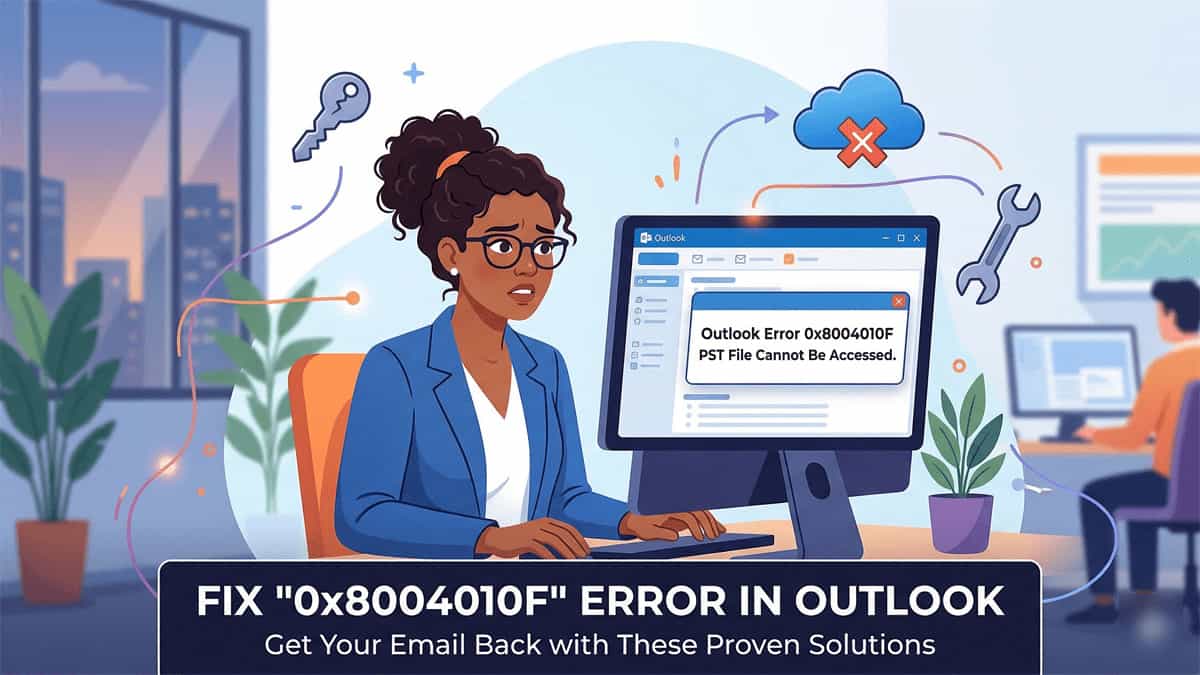
Encountering the 0x8004010F error in Outlook is a common but frustrating roadblock. Usually, it appears with one of two messages:
- “Outlook cannot access the necessary Outlook Data File (.pst)”
- “The operation failed. An object could not be found.”
This error essentially means Outlook has lost the “map” to your data file. While it can happen after a system update, the most frequent cause today is OneDrive automatically syncing and moving your “Documents” folder.
Why Does This Happen?
The error 0x8004010F is almost always linked to one of three things:
- The File Moved: OneDrive moved your PST file to the cloud, and Outlook is still looking for it on your local hard drive.
- Corrupted Profile: Your Outlook profile (the configuration file) is damaged.
- Damaged PST File: The data file itself has internal errors.
Solution 1: Move the PST File Out of OneDrive
Outlook PST files are not compatible with cloud syncing. If OneDrive “grabbed” your file, you need to move it to a safe, non-synced location.
- Close Outlook completely.
- Locate the file: Go to your OneDrive folder (usually
C:\Users\[Username]\OneDrive\Documents\Outlook Files). - Move it: “Cut” the
.pstfile and “Paste” it into a new folder that OneDrive doesn’t touch, such asC:\OutlookData\. - Reconnect in Outlook:
- Open Outlook. If it asks for the file location, browse to
C:\OutlookData\and select it. - If Outlook opens but shows errors, go to File > Account Settings > Account Settings.
- Under the Data Files tab, click Add, select your file in the new location, and click Set as Default. You can then remove the old, “Not Found” entry.
- Open Outlook. If it asks for the file location, browse to
Solution 2: Create a New Outlook Profile
If moving the file doesn’t work, your Outlook Profile is likely corrupted. This is the “clean slate” method recommended by Microsoft.
- Open the Control Panel and search for Mail (Microsoft Outlook).
- Click Show Profiles > Add.
- Name it “Outlook New” and follow the prompts to add your email account.
- Crucial Step: When prompted for account setup, look for the option to “Use an existing Outlook Data File” and point it to your PST file.
- Back in the Mail window, change “Always use this profile” to your new profile and click OK.
Solution 3: Use the Inbox Repair Tool (ScanPST)
If the path is correct but the error persists, the file itself might be “glitchy.”
- Close Outlook.
- Find SCANPST.EXE on your computer. It is usually located at:
C:\Program Files\Microsoft Office\root\Office16
- Run the tool, click Browse to find your PST file, and click Start.
- If it finds errors, click Repair. (Note: You may need to run this 2–3 times until it reports no errors).
Still Having Trouble?
If these steps don’t clear the 0x8004010F error, the PST file might be severely corrupted. In these rare cases, you may need a specialized PST repair tool or need to export your data to a fresh file.