TL;DR: Error 0x800CCC0E usually means Outlook can’t reach your mail server. Start by checking your internet connection and disabling your antivirus temporarily. Jump to Solution 4 to verify your server settings.
Few things are as frustrating as clicking “Send/Receive” in Outlook only to be met with the error:
“Task ‘your email address’ reported error (0x800CCC0E): ‘Cannot connect to the server. If you continue to receive this message, contact your server administrator or Internet service provider (ISP).’”
This error essentially means Outlook cannot establish a connection with your email server. It affects both POP3 and IMAP accounts, and while it’s often temporary, it can persist if something is blocking the connection.
What Causes Error 0x800CCC0E?
The error is a generic “connection failed” message. Common culprits include:
- A temporary internet outage or network issue.
- Firewall or antivirus software blocking Outlook.
- Incorrect server settings (server name, port, or encryption).
- An outdated or corrupted Outlook profile.
- SSL/TLS encryption mismatches.
- The mail server is down or undergoing maintenance.
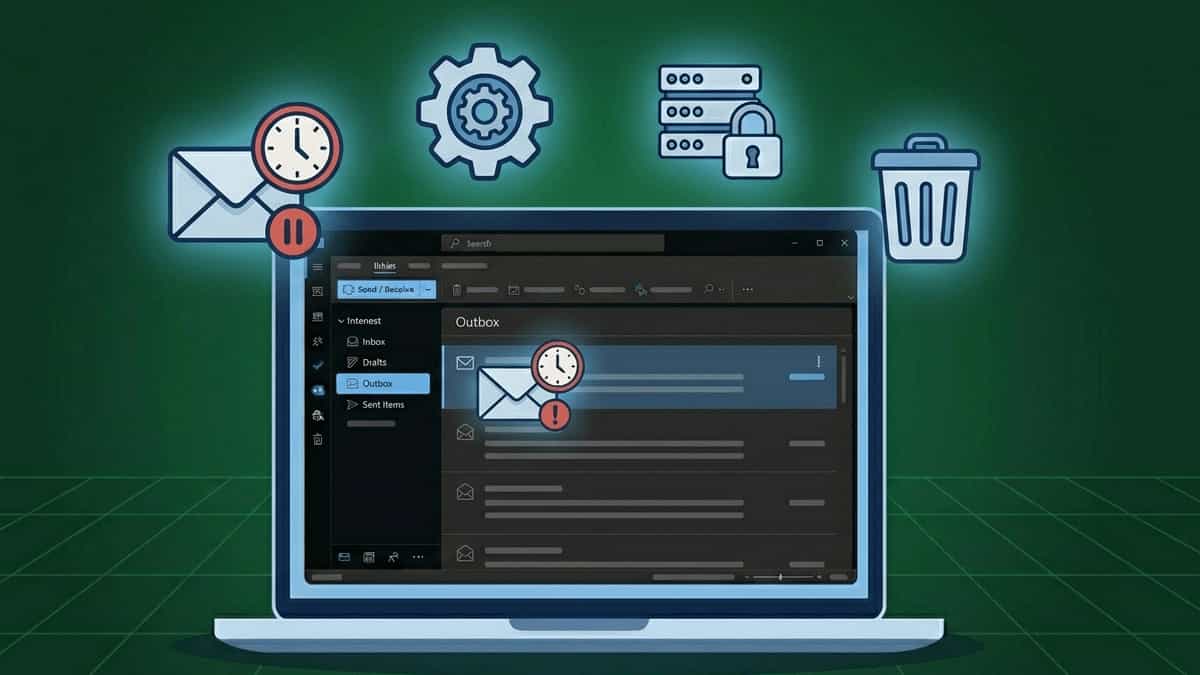
- A stuck message in your Outbox – a corrupted or oversized email can sometimes loop and trigger this error repeatedly.
How to Fix Outlook Error 0x800CCC0E
Work through these solutions in order. Most are quick to try and can resolve the issue without complex steps.
1. Check Your Internet Connection
A simple but often overlooked cause. Ensure you’re connected to the internet:
- Open a browser and visit any website.
- If you’re on a corporate VPN, try disconnecting and reconnecting.
- Restart your router/modem if other devices also have no connection.
2. Temporarily Disable Antivirus & Firewall
Overzealous security software can block Outlook’s network access.
- Antivirus: Right‑click your antivirus icon in the system tray and choose Disable (or Pause protection) temporarily. Try sending/receiving again.
- Windows Firewall: Go to Control Panel → Windows Defender Firewall → Allow an app or feature through Windows Defender Firewall. Ensure Microsoft Office Outlook is checked for both Private and Public networks. If not, click Change settings and add it.
If the error disappears after disabling security software, add an exception for Outlook or configure the software to allow outlook.exe through the firewall permanently.
3. Run Outlook in Safe Mode
A problematic add‑in can sometimes interfere with the network stack.
- Press Windows Key + R, type
outlook.exe /safe, and press Enter. - If Outlook opens and can send/receive, the issue is caused by an add‑in.
- Go to File → Options → Add‑ins.
- At the bottom, select COM Add‑ins and click Go.
- Disable all add‑ins, then re‑enable them one by one to find the culprit.
4. Verify Account Settings & Server Names
Incorrect server names, ports, or encryption settings are a leading cause of 0x800CCC0E.
- In Outlook, go to File → Account Settings → Account Settings.
- Select your email account and click Change.
- Verify the following based on your account type (POP3 or IMAP):
| Setting | Recommended Value |
|---|---|
| Incoming Server | Typically mail.yourdomain.com or provided by your ISP/hosting |
| Outgoing Server | Usually the same as incoming (or SMTP server) |
| Port (Incoming) | IMAP: 993 (SSL/TLS); POP3: 995 (SSL/TLS) |
| Port (Outgoing) | 465 (SSL/TLS) or 587 (STARTTLS) |
| Encryption | SSL/TLS or STARTTLS (no “None”) |
⚠️ Important – Outgoing Server Authentication
Most modern email servers require authentication for outgoing mail. Even if your settings look correct, missing this step will block the connection.
Click More Settings → Outgoing Server tab. Check My outgoing server (SMTP) requires authentication and select Use same settings as my incoming mail server.📌 Note on Port 25: Many ISPs now block Port 25 to prevent spam. If you are currently using Port 25 for outgoing mail, switching to Port 587 (STARTTLS) is often the instant fix. Contact your email provider for their preferred outgoing port.
- Click Advanced tab and ensure the port numbers match the encryption types.
5. Create a New Outlook Profile
Corrupt Outlook profiles are a frequent source of connection errors. Creating a fresh profile can resolve the issue.
- Close Outlook.
- Go to Control Panel → Mail (Microsoft Outlook) (or search for “Mail” in Windows).
- Click Show Profiles.
- Click Add, give the new profile a name (e.g., “Outlook New”), and set up your email account.
- Under “When starting Microsoft Outlook,” select Prompt for a profile.
- Open Outlook and choose the new profile. If the error disappears, you can eventually make the new profile the default.
6. Check for Windows or Office Updates
Sometimes updates include fixes for connectivity protocols (like TLS 1.2 support).
- Windows Update: Go to Settings → Windows Update → Check for updates.
- Office Update: In any Office app, go to File → Account → Update Options → Update Now.
7. Use the Microsoft Support and Recovery Assistant (SaRA)
Microsoft’s automated tool can diagnose and fix many Outlook connectivity issues.
- Download the Microsoft Support and Recovery Assistant (official Microsoft link).
- Run the tool and select Outlook → I’m having trouble connecting to my email.
- Follow the on‑screen instructions. The tool will test settings, detect problems, and attempt repairs.
8. Check with Your Email Provider or IT Admin
If none of the above work, the issue may be on the server side:
- Personal accounts: Contact your email hosting provider. Ask if the server is up and if any recent changes have been made.
- Work/school accounts: Reach out to your IT department. They may need to update DNS records or check if the server is blocking your IP.
Helpful Resources & Links
For additional guidance, these official Microsoft support articles offer deeper insight:
- [Microsoft Support] Fix Outlook connection issues
https://support.microsoft.com/en-us/office/fix-outlook-connection-issues-39bcf37c-8994-4e53-a38b-5505696cf7df - [Microsoft Support] Error 0x800CCC0E appears when you try to send or receive email in Outlook
https://support.microsoft.com/en-us/topic/error-0x800ccc0e-appears-when-you-try-to-send-or-receive-email-in-outlook-8d8a6f9c-3a4e-4e2a-9c0d-4b7c1d2f6b3a - [Microsoft Support] Update to enable TLS 1.1 and TLS 1.2 as default secure protocols in WinHTTP in Windows
https://support.microsoft.com/en-us/topic/update-to-enable-tls-1-1-and-tls-1-2-as-default-secure-protocols-in-winhttp-in-windows-c4bd73d2-31d7-761e-0178-11268bb10392 - [Microsoft Support] Fix email sync issues or repair your Outlook profile
https://support.microsoft.com/en-us/office/fix-email-sync-issues-or-repair-your-outlook-profile-5e3c2b4f-5c7b-4a3e-8e4a-5c1f8e9c9a6b
Struggling with other Outlook errors? Check out our previous guide: [Fix: “A Required Authentication Broker is Missing” in Outlook & Microsoft 365] – link to previous post.