TL;DR: MS Outlook can’t send or receive despite internet access. The fix often involves resetting send/receive groups, toggling “Work Offline,” or creating a new profile. Jump to Solution 2.
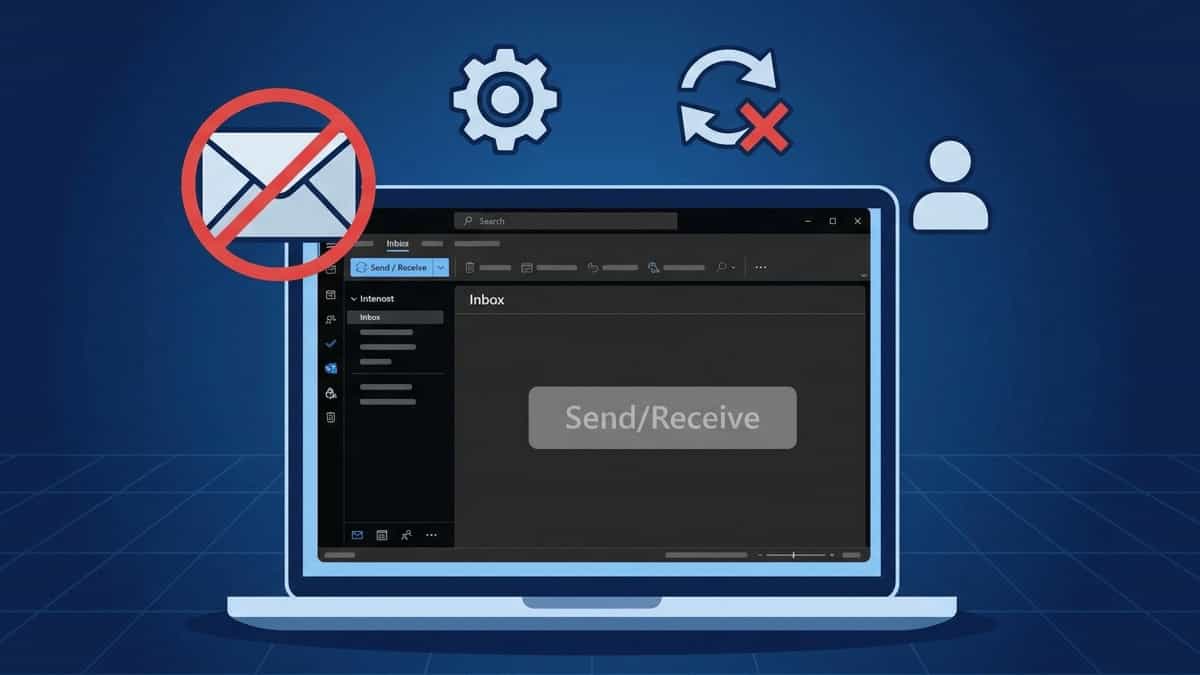
Few things are more alarming than clicking “Send/Receive” and seeing nothing happen—no new emails arrive, your outgoing messages sit in the Outbox, and the status bar remains idle. You have a working internet connection, but Outlook refuses to communicate with your mail server.
This issue can affect any account type (Exchange, POP, IMAP, Microsoft 365) and is usually caused by misconfigured send/receive settings, a corrupted profile, or a network conflict. Fortunately, it’s fixable with the right steps.
What Causes MS Outlook to Stop Sending/Receiving?
- Send/Receive groups disabled – The schedule or group may be turned off.
- “New Outlook” toggle interference – The modern web‑based interface handles sync differently.
- Corrupt Outlook profile – Profile corruption can break the send/receive mechanism.
- Network connectivity issues – Even if the internet works, Outlook may fail to reach the mail server.
- Account settings changed – Server names, ports, or authentication may have been altered.
- Add‑in interference – Some add‑ins block send/receive operations.
- Modern authentication expired – MFA tokens or app passwords may need refreshing.
How to Fix MS Outlook Not Sending or Receiving Emails
Work through these solutions in order.
1. Check the “New Outlook” Toggle
By 2026, the “New Outlook” (the web‑based replacement for the classic desktop app) is common. If you’re using it, many traditional send/receive settings are handled automatically by the cloud.
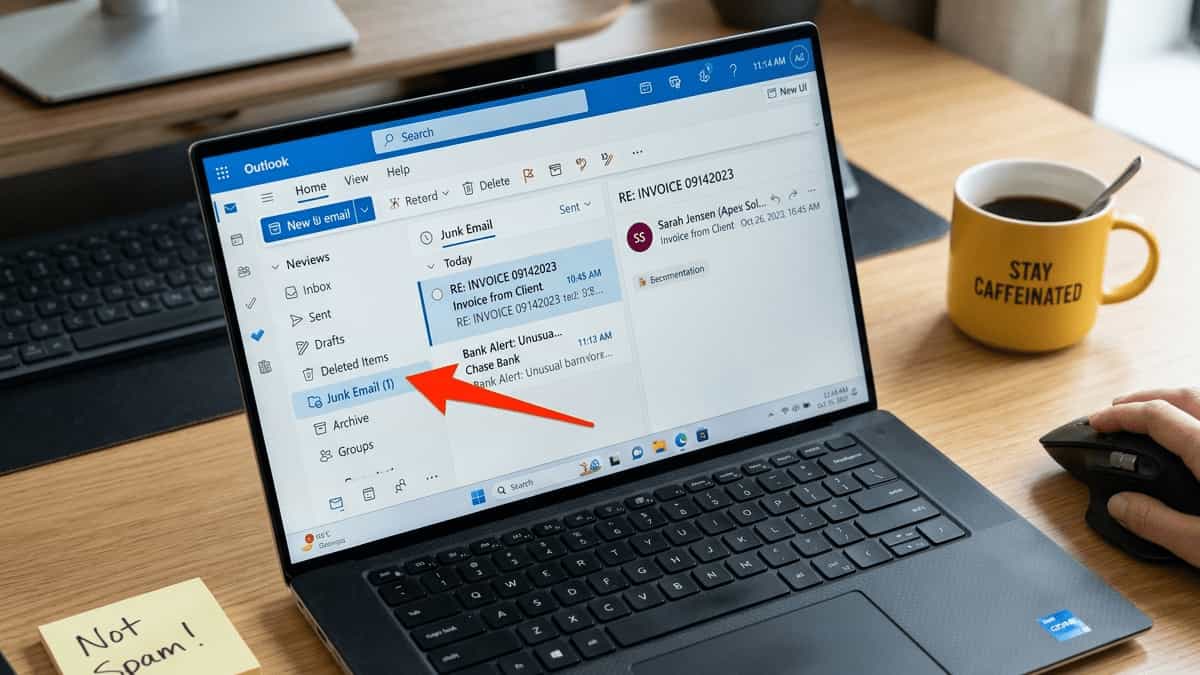
- Look for the “New Outlook” toggle in the top‑right corner of the Outlook window.
- If it’s on, try switching off to revert to Classic Outlook. This will tell you whether the problem is specific to the new architecture.
- If the issue disappears in Classic Outlook, you can either stay in Classic or check your Microsoft 365 account status online.
2. Check Your Internet & Server Connectivity
Even if you can browse websites, Outlook may have trouble reaching the mail server.
- Test with Outlook Web Access: Log in to outlook.com or your provider’s webmail. If emails flow there, the problem is 100% local to your app/PC.
- Open a command prompt and ping your mail server (e.g.,
ping mail.yourdomain.com). If you don’t know the server, use your email provider’s server name. - Try disabling VPN temporarily.
- Restart your router/modem.
3. Check Send/Receive Groups
The most common reason for “no activity” is that Send/Receive groups are disabled.
- Go to the Send/Receive tab.
- Click Send/Receive Groups → Define Send/Receive Groups.
- Ensure Schedule an automatic send/receive every X minutes is checked and set to a reasonable interval (e.g., 10 minutes).
- Make sure the Include this group in send/receive box is checked for your account group.
- Click Close and manually click Send/Receive All Folders.
4. Toggle “Work Offline” to Force a Fresh Handshake
Sometimes Outlook looks connected but is stuck in a status loop.
- Go to the Send/Receive tab.
- Click Work Offline to turn it on.
- Wait a few seconds, then click Work Offline again to turn it off.
- This forces a fresh handshake with the mail server.
5. Run Outlook in Safe Mode & Disable Add‑ins
A malfunctioning add‑in can block send/receive.
- Press Windows Key + R, type
outlook.exe /safe, and press Enter. - If send/receive works in Safe Mode, the issue is an add‑in.
- Go to File → Options → Add‑ins.
- At the bottom, select COM Add‑ins and click Go.
- Disable all add‑ins, restart Outlook normally, and test. Re‑enable them one by one to find the culprit.
6. Reset Account Settings & Refresh Modern Authentication
Modern authentication (OAuth2, MFA, app passwords) is now standard. If a token expired or your password changed, Outlook may silently stop syncing.
- Go to File → Account Settings → Account Settings.
- Select your email account and click Repair (if available). For Exchange/Office 365, this runs the Microsoft Connectivity Analyzer and may trigger a fresh sign‑in.
- If that doesn’t help, remove the account and add it again. When prompted, sign in via the modern browser popup—do not just enter a password if 2FA is enabled.
- For Gmail, Outlook.com, or Yahoo, generate a new App Password if you have 2FA enabled.
Note: For POP/IMAP, ensure server names, ports, and authentication are correct. Refer to our guide Fix: Outlook Error 0x80042109 – SMTP Connection Failure for detailed settings.
7. Create a New Outlook Profile
Profile corruption is a leading cause of send/receive failures.
- Close Outlook.
- Open Control Panel → Mail (Microsoft Outlook) → Show Profiles.
- Click Add, create a new profile, and set up your email account.
- Under “When starting Microsoft Outlook,” select Prompt for a profile.
- Open Outlook with the new profile and test send/receive. If it works, you can make the new profile the default.
8. Use the Microsoft Support and Recovery Assistant (SaRA)
💡 Pro Tip: SaRA is an official Microsoft “magic bullet” that many users don’t know exists. It automates diagnosis and repair.
- Download the Microsoft Support and Recovery Assistant.
- Run the tool and select Outlook → I’m having trouble sending or receiving email.
- Follow the prompts. SaRA will test settings, check connectivity, and repair common problems.
9. Check Windows & Office Updates
Outdated software can cause intermittent send/receive failures.
- Windows Update: Go to Settings → Windows Update → Check for updates.
- Office Update: In Outlook, go to File → Office Account → Update Options → Update Now.
Related Reading from Mukunda Software
Explore our other Outlook troubleshooting guides for comprehensive help:
- Fix: Outlook Error 0x8004210A – POP Server Timeout
- Fix: Outlook Error 0x80042109 – SMTP Connection Failure
- Fix: Outlook Error 0x800CCC0F – Server Connection Interrupted
- Fix: Outlook Stuck in Disconnected Mode
- Fix: Required Authentication Broker Missing