Quick Fix Checklist
| Symptom | Primary Solution |
|---|---|
| “Session Expired” notification | Refresh the page and log in again |
| Frequent logouts after closing browser | Uncheck “Clear cookies on exit” in browser settings |
| Logged out from all devices | Check if your phone’s main SIM is active (India specific) |
| Disconnected every few hours | Disable VPN or battery optimization on phone |
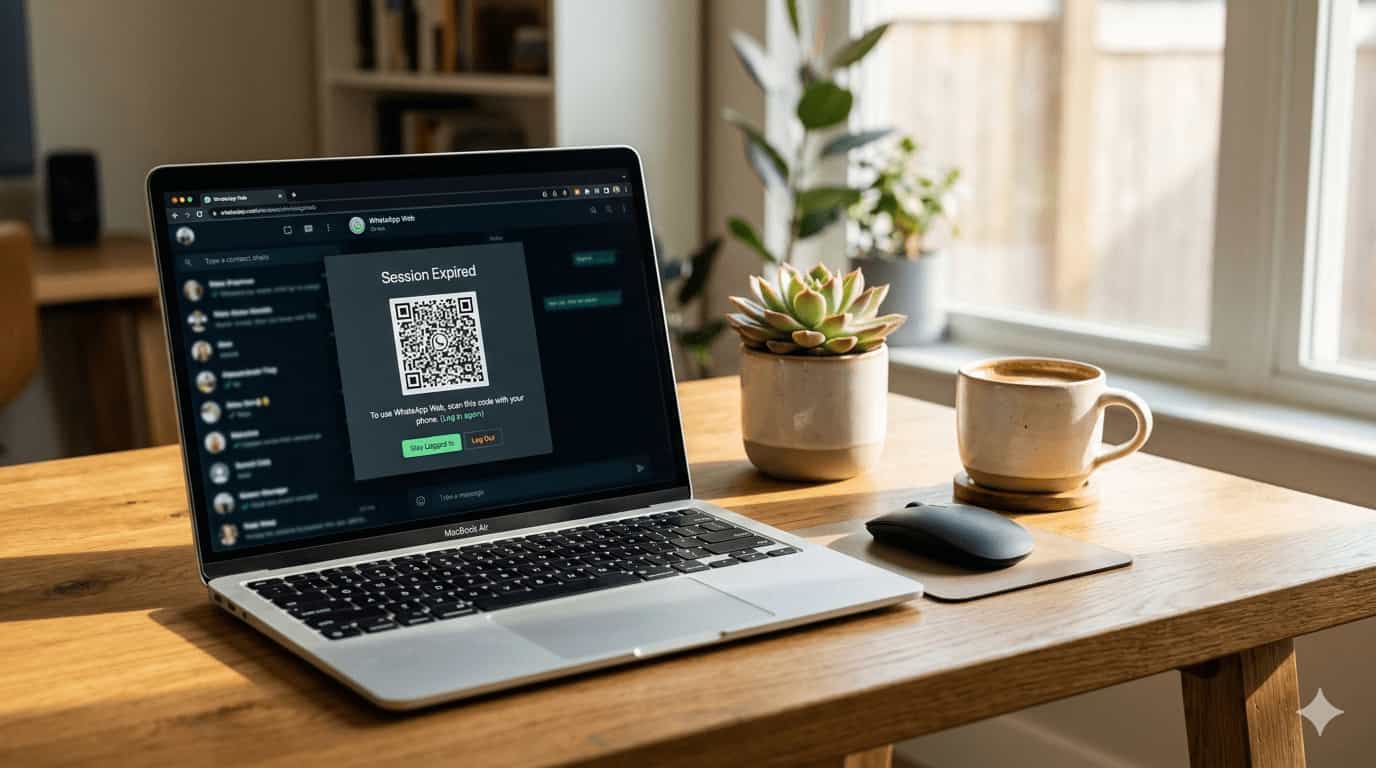
One of the most annoying bugs in WhatsApp Web is having your session expire exactly when you need to send an important message. Instead of your chats loading, you’re greeted with a QR code and forced to pick up your phone to log in again. If this happens multiple times a day or every time you close your browser, something is clearly wrong.
Frequent logouts are usually caused by browser settings that wipe your session data, restrictive network firewalls, or new regulatory security checks. Here is how to lock your session in and stop WhatsApp Web from logging you out.
1. Disable “Clear Cookies on Exit” in Your Browser
Most “Session Expired” issues occur because the browser is set to erase its memory every time you close it. WhatsApp Web relies on a “session cookie” to remember who you are.
- Chrome: Settings > Privacy and Security > Cookies and other site data. Ensure “Clear cookies and site data when you close all windows” is turned OFF.
- Firefox: Settings > Privacy & Security > Cookies and Site Data. Uncheck “Delete cookies and site data when Firefox is closed.”
- Edge: Settings > Privacy, search, and services > Choose what to clear every time you close the browser. Ensure Cookies is toggled OFF.
2. Avoid Using Incognito or Private Mode
Incognito/Private windows are designed to be temporary. They do not save cookies or session data after the window is closed. If you use WhatsApp Web in Incognito, you must log in with a QR code every single time. Switch to a normal browser window for a persistent session.
3. Check Your Phone’s Background Activity
Even with multi-device support, WhatsApp’s servers occasionally “ping” your primary phone to verify the account is still active. If your phone is in an aggressive power-saving mode, it might not respond, causing the web session to expire.
- Android: Go to Settings > Apps > WhatsApp > Battery. Set it to “Unrestricted.”
- iPhone: Go to Settings > General > Background App Refresh. Ensure WhatsApp is toggled ON.
4. The “SIM Binding” Requirement (India Specific)
If you are in India, recent telecommunications regulations mean WhatsApp may periodically perform “SIM binding” checks. If the SIM card associated with your WhatsApp account is removed from the phone or the phone is offline for a long period, your linked devices (including Web) may be automatically logged out for security. Ensure your primary SIM is active and in the phone.
5. Update Browser and App to Latest Versions
Old software versions can have “stale” security tokens that expire faster than they should. Update your browser on your computer and the WhatsApp app on your phone via the App Store or Play Store.
6. Disable Content Blockers or “Shields”
Browsers like Brave or extensions like uBlock Origin can sometimes view the session handshake as a tracking script and block it. If you use Brave, click the lion icon in the address bar and turn “Shields” OFF for web.whatsapp.com.
7. Use the Dedicated WhatsApp Desktop App
If your browser continues to drop sessions, the official WhatsApp Desktop app (available for Windows and Mac) is significantly more stable. It operates in its own environment and isn’t subject to the same cookie-clearing rules as a web browser.
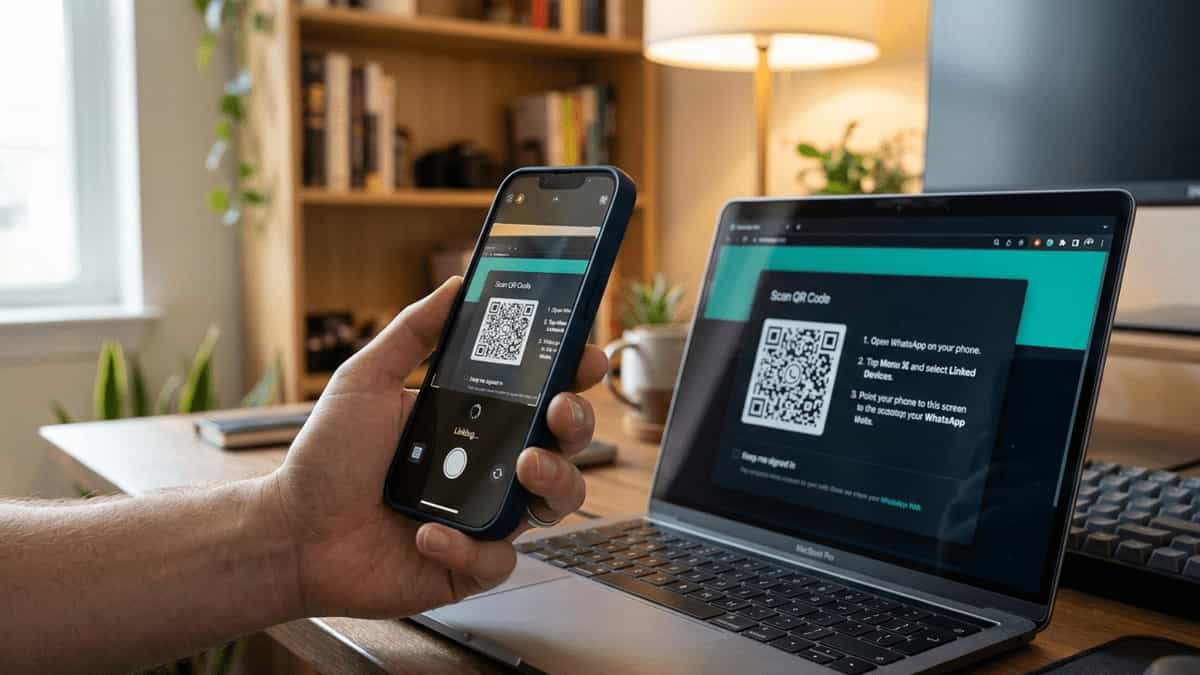
8. Relink Your Device from Scratch
If your session data is corrupted, you need a “hard reset” of the link.
- On your phone, go to Settings > Linked Devices.
- Tap the problematic session and choose Log Out.
- Restart both your phone and your PC.
- Log in again at web.whatsapp.com.
Helpful Resources
By adjusting your browser’s cookie settings and ensuring your phone can communicate in the background, you should be able to eliminate the “Session Expired” error for good. If you’re using a work computer, remember that some corporate IT policies force a logout for security—in that case, you may need to speak with your IT department or simply re-link as needed.