Quick Fix Checklist
| Symptom | Primary Solution |
|---|---|
| “Couldn’t link device” error | Restart iPhone & refresh Web page |
| QR code won’t scan on iOS | Check camera permissions & brightness |
| Syncing stuck on iPhone | Update WhatsApp to latest version |
| Connection drops frequently | Disable VPN or Wi-Fi Assist on iPhone |
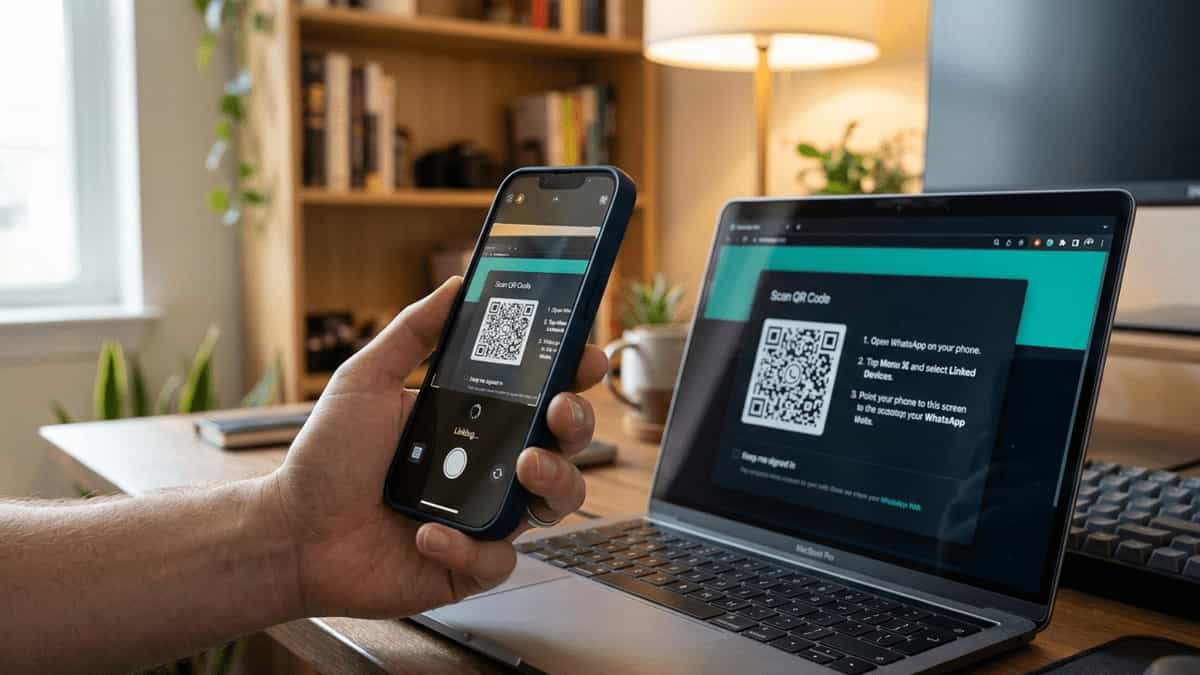
If you’re an iPhone user, you might have encountered a frustrating glitch where WhatsApp Web refuses to link, or the QR code simply won’t scan. While Android users often breeze through the process, the iOS version of WhatsApp can sometimes hit a snag during the initial handshake between your phone and your computer.
This “iPhone login glitch” is usually related to temporary software bugs, stale session data, or specific iOS settings like camera permissions. Below is a detailed guide to help you resolve these linking issues and get your WhatsApp chats back onto your big screen.
1. Restart Your iPhone and Computer
It sounds simple, but a fresh start often clears the temporary glitches that prevent device linking.
- Turn your iPhone off and back on again.
- Restart your browser or the WhatsApp Desktop app.
- Refresh the web.whatsapp.com page to generate a brand-new QR code.
2. Verify WhatsApp Camera Permissions
If the QR code scanner doesn’t open or appears black, iOS might be blocking WhatsApp’s access to your camera.
- Open the Settings app on your iPhone.
- Scroll down and tap on WhatsApp.
- Ensure the Camera toggle is turned ON (green).
- Try scanning the QR code again.
3. Update WhatsApp on the App Store
Linking bugs are often patched in the latest updates. If you haven’t updated in a while, your version might be incompatible with the current web client.
- Open the App Store.
- Tap your profile icon at the top right.
- Scroll down to see pending updates or search for “WhatsApp.”
- Tap Update if a new version is available.
4. Force Close Other Sessions
Sometimes a “stuck” previous session on your iPhone prevents a new one from forming.
- Open WhatsApp on your iPhone.
- Go to Settings > Linked Devices.
- Tap on any existing sessions and select Log Out.
- Once the list is clear, try scanning the QR code on your computer again.
5. Disable VPN and Check Network Restrictions
VPNs can mask your IP address in a way that confuses WhatsApp’s security protocols during the linking phase.
- Turn off VPNs on both your iPhone and your computer temporarily.
- Ensure both devices are on the same Wi-Fi network (this isn’t technically required for multi-device, but it helps the initial pairing process).
- If you’re on a corporate or public Wi-Fi, try switching your iPhone to cellular data while linking.
6. Adjust Screen Brightness and Zoom
If the camera is on but won’t “snap” the code:
- Increase Brightness: Boost your computer monitor’s brightness to 100%.
- Reset Zoom: Press
Ctrl + 0(Windows) orCmd + 0(Mac) on your browser to ensure the QR code is at its default size. - Clean the Lens: Wipe your iPhone’s camera lens with a soft cloth to remove fingerprints or smudges.
Helpful Resources
- Official: How to log in or out of WhatsApp Web
- Troubleshooting for iPhone Users
- About Linked Devices
By following these steps, you should be able to bypass the iPhone-specific login glitch. Usually, a quick restart and clearing out old linked devices is all it takes to get things moving again. If you’ve tried everything and it still won’t link, consider using the native WhatsApp Desktop app for a more stable experience on Mac or Windows.