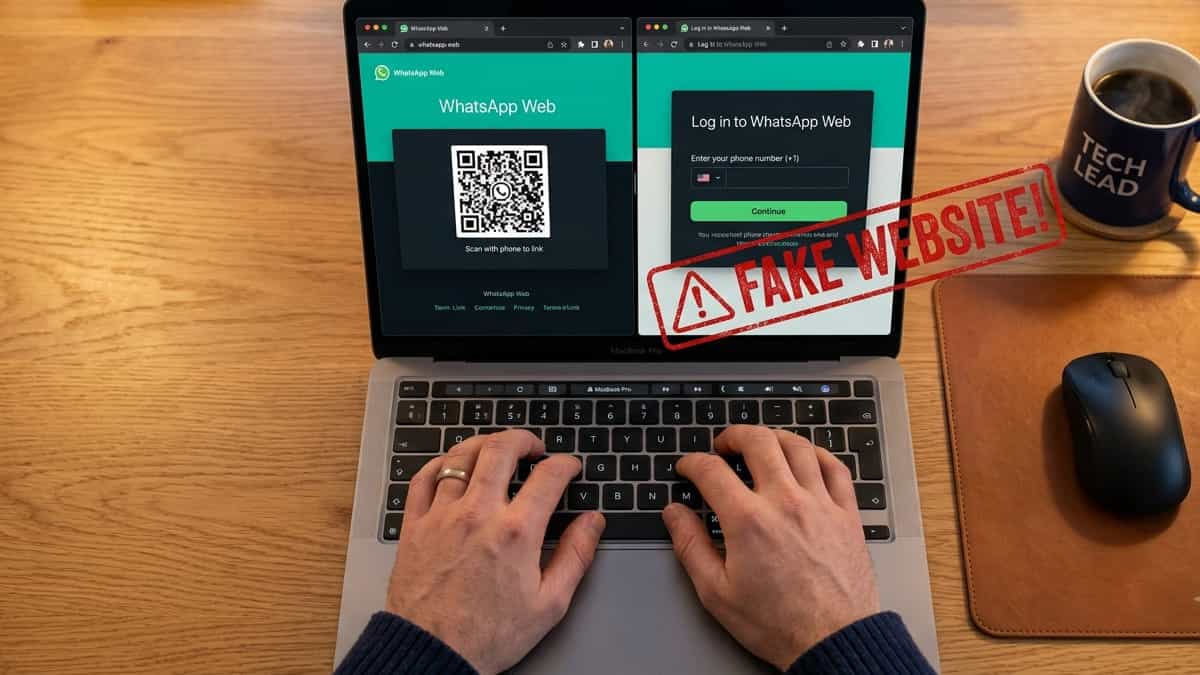
Quick Safety Checklist
| Check | Official Site behavior |
|---|---|
| The URL | web.whatsapp.com (and only that) |
| Login Method | Always shows a QR code, never asks for a phone number first |
| Security Icon | Should have a padlock icon in the browser address bar |
| Search Results | Beware of “Sponsored” or “Ad” links on Google/Bing |
WhatsApp Web is a target for cybercriminals because once they gain access to your account, they can read your personal messages, scam your contacts, and hijack your digital identity. Increasingly, attackers are using “phishing sites”—fake pages that look exactly like the real WhatsApp Web but are designed to steal your session or phone number.
Falling for one of these scams can happen in a split second. Here is a definitive guide on how to tell the difference between the real WhatsApp Web and a dangerous fake, and what to do if you’ve already accidentally logged in to a suspicious site.
1. Always Check the Full URL
The only official and safe URL for WhatsApp Web is:
Phishing sites often use “typosquatting” to trick you. Look out for URLs like:
web-whatsapp.comwa-web.ioweb.whatsapp-login.comwhatsapp-web.net
Small changes or hyphenated versions are almost always fake. If the browser address doesn’t say web.whatsapp.com, close the tab immediately.
2. Beware of “Sponsored” Search Ads
Attackers often pay for ads on Google, Bing, and other search engines to make their phishing sites appear at the very top of search results. These ads can look identical to the real site link.
- Check for the word “Ad” or “Sponsored” next to the link.
- Never click on these top-tier ads for WhatsApp Web. Instead, scroll down to the first “organic” search result or simply type the address directly into your browser.
3. Official Site Never Asks for Your Phone Number First
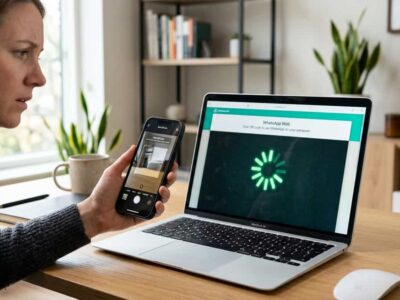
When you open the real WhatsApp Web, the first thing you see is a QR Code. It will never ask you to enter your phone number, name, or password to “link your account” initially.
If you see a form asking for your mobile number or a verification code on the web page itself (rather than inside the WhatsApp app on your phone), you are likely on a phishing site designed to hijack your account.
4. Look for the Padlock and SSL Certificate
The official site will always have a secure HTTPS connection. Click the padlock icon in your browser’s address bar. It should show that the certificate is “Valid” and issued to WhatsApp LLC or Meta Platforms, Inc.
While many phishing sites also have SSL (the padlock), if you see “Insecure” or “Not Trusted” messages, leave the site at once.
5. Check Your “Linked Devices” Regularly
The best way to know if you’ve been hacked is to check which devices are currently logged in to your account. WhatsApp allows you to see all active web or desktop sessions directly on your phone.
- Open WhatsApp on your mobile phone.
- Go to Settings > Linked Devices.
- Look at the list of “Last active” sessions. If you see a device or location you don’t recognize (e.g., a “Linux” machine if you use Windows), tap it and select Log Out.
What to Do if You Logged into a Fake Site
If you realize you’ve accidentally scanned a QR code on a suspicious site, follow these emergency steps:
- Immediate Logout: On your phone, go to Settings > Linked Devices and Log Out of all recognized and unrecognized sessions.
- Clear Browser History: On your computer, clear your browser’s cache and cookies to remove any “stale” session tokens the attacker may have left.
- Notify Contacts: If you suspect your account was briefly hijacked, warn your close friends and family not to click any links or send money if “you” ask for it.
Your security is your responsibility. By only ever using the official URL and staying vigilant about search ads, you can protect yourself from phishing scams and keep your private conversations private.