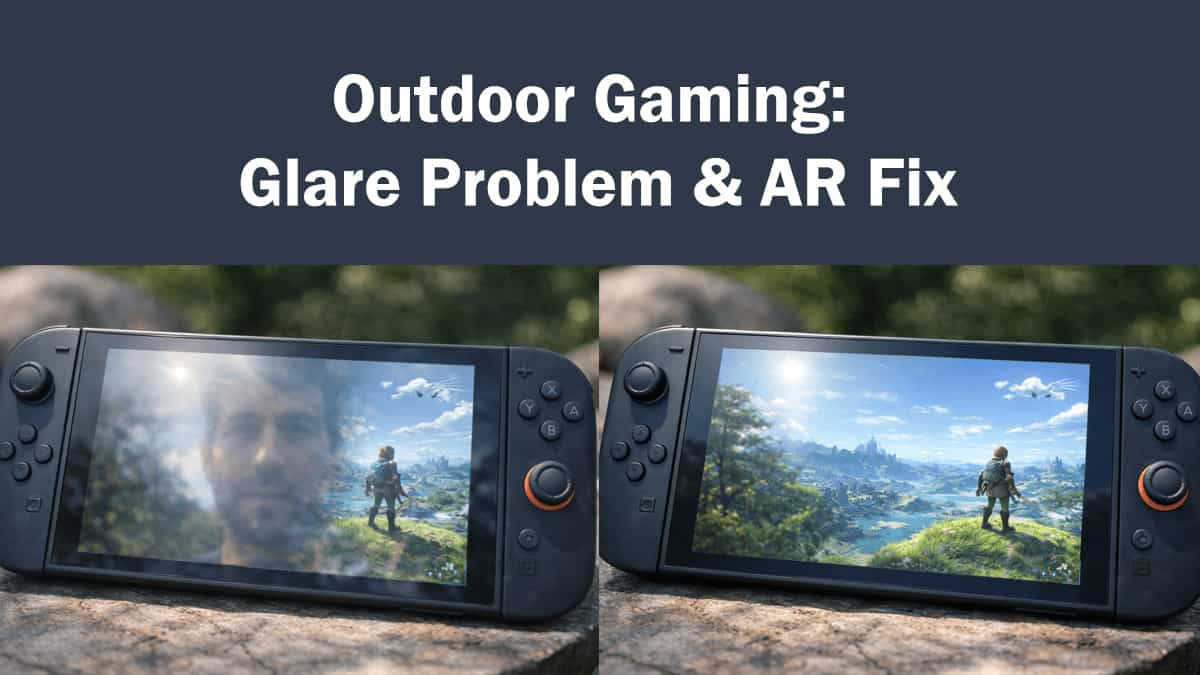
You finally got your hands on the Nintendo Switch 2. You head to the park, ready to dive into Zelda: Tears of the Kingdom — Switch 2 Edition, only to find you’re staring at a reflection of yourself.
While the Switch 2’s new 7.9-inch, 120Hz display is a massive upgrade in size and smoothness, it uses LCD technology rather than OLED. This means it faces an uphill battle against the sun. Here is why the glare happens and the best ways to fix it.
The Problem: Brightness vs. The Sun
Technical reviews from 2026 (including TechSpot and GamingTech) have clocked the Switch 2’s peak brightness at approximately 450 nits.
- The Math: For comfortable outdoor viewing in direct sunlight, a screen usually needs 800–1,000+ nits (like a modern iPhone).
- The Contrast: Because it’s an IPS LCD, the “blacks” on the screen aren’t truly black—they are a very dark grey. When sun hits the screen, those greys wash out completely, killing your contrast.
Solution 1: Disable Auto-Brightness & HDR
In the house, Auto-Brightness is great. In the sun, it’s your enemy.
- Hold the Home Button to open the Quick Settings.
- Toggle Auto-Brightness OFF and slide the bar to 100%.
- Pro Tip: Go to System Settings > TV Settings and consider turning HDR off for outdoor play. On an LCD at 450 nits, HDR can actually make the overall image look “dimmer” as it tries to balance highlights, making it harder to see in the sun.
Solution 2: The AR Screen Protector (The Best Fix)
The most effective hardware solution is an Anti-Reflective (AR) Screen Protector.
- Recommendation: The JSAUX Obsidian AR is the current gold standard. Unlike “Matte” protectors that make the screen look blurry or grainy, AR protectors use nano-coatings (like high-end camera lenses) to cancel out light waves.
- Warning: The Switch 2 comes with a factory “safety film” to prevent glass from shattering. Do not peel this off. Apply your AR protector directly on top of it.
Solution 3: Find “Open Shade”
If you can’t beat the sun, hide from it. “Open shade”—the shadow of a building or a large tree—provides enough ambient light to see clearly without the direct rays hitting your screen. This is often enough to make that 450-nit peak brightness feel perfectly adequate.
Solution 4: Use “Handheld Mode Boost”
Ensure your Switch 2 is updated to the latest firmware (v22.0.0 or later). Nintendo added a “Handheld Mode Boost” feature that stabilizes frame rates and slightly bumps color saturation. That extra punch in color can help the UI elements pop even when the screen is being hit by glare.
Further Reading
Check out our other Switch 2 guides to get the most out of your new console: