Quick Answer: How to Clear RAM on Mac
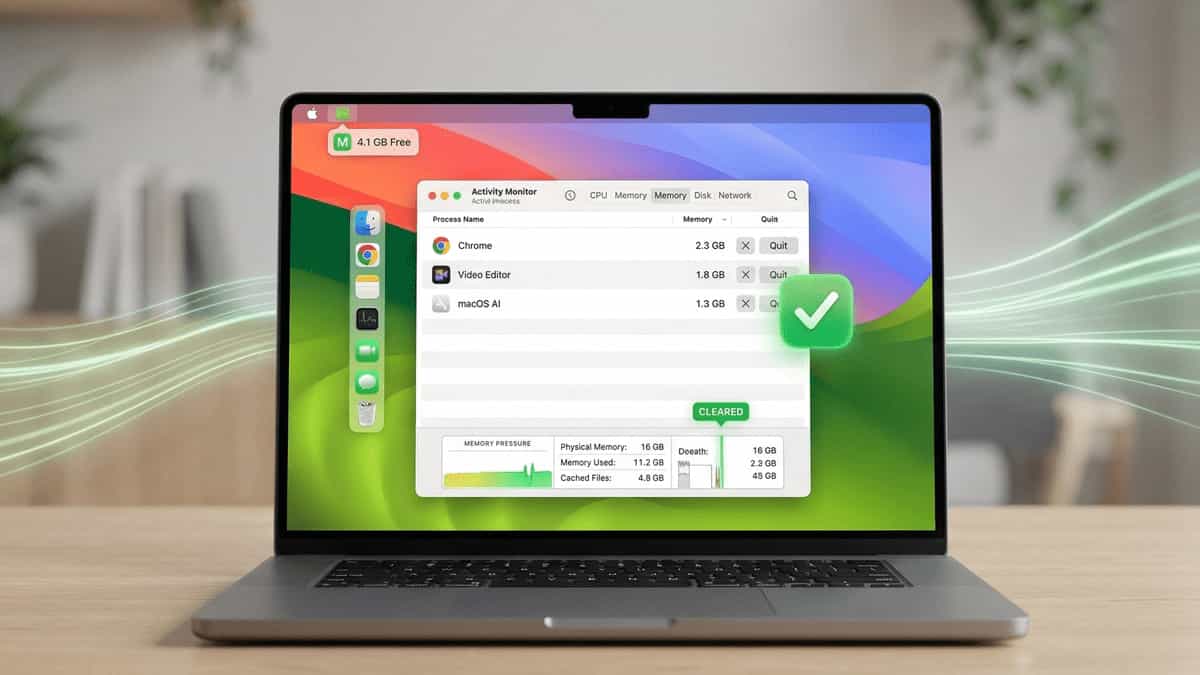
The most effective way is to Restart your Mac. This flushes all active memory and reset background processes. If you can’t restart, open Activity Monitor, sort by Memory, and quit the top offenders.
Solution 1: Use Activity Monitor to Find “Memory Hogs“
Activity Monitor is your best friend for diagnosing slowdowns.
- Open Activity Monitor (via Spotlight or
Applications > Utilities). - Click the Memory tab.
- Check the Memory Pressure graph:
- Green: You’re fine. macOS is caching data normally.
- Yellow: Your Mac is struggling. It’s using “Swap” (SSD space) to act as RAM.
- Red: Your Mac is out of memory. You need to close apps immediately.
- Sort by Memory and quit any apps using GBs of data that you aren’t currently using.
Solution 2: Manage Login Items & Background Tasks
Many apps launch in the background the moment you turn on your Mac.
- Go to System Settings > General > Login Items & Extensions.
- Under Open at Login, remove any apps you don’t need immediately.
- Check the Allow in the Background list. Turn off helper tools for apps you rarely use.
Solution 3: The Terminal “Purge” (Advanced)
If you need to launch a heavy app (like Final Cut Pro) and want to give it as much “Inactive RAM” as possible:
- Open Terminal.
- Type
sudo purgeand hit Enter. - Enter your admin password.Note: Your Mac may freeze for 5–10 seconds while the cache is flushed. This is normal.
Solution 4: Tweak macOS 26 Visuals
If you are on an older Mac or a base-model Air, the new Liquid Glass UI can be demanding.
- Go to System Settings > Accessibility > Display.
- Toggle on Reduce transparency. This reduces the strain on the GPU and unified memory.
Solution 5: Limit Browser Tabs
In 2026, browsers like Chrome and Safari often use Memory Saver modes, but they still consume significant RAM.
- Pro Tip: If you have 20+ tabs open, use a “Tab Suspender” extension or simply bookmark the ones you aren’t using. Each tab can easily eat 250MB to 1GB of unified memory.
Further Reading
Maximize your Mac’s hardware and performance: