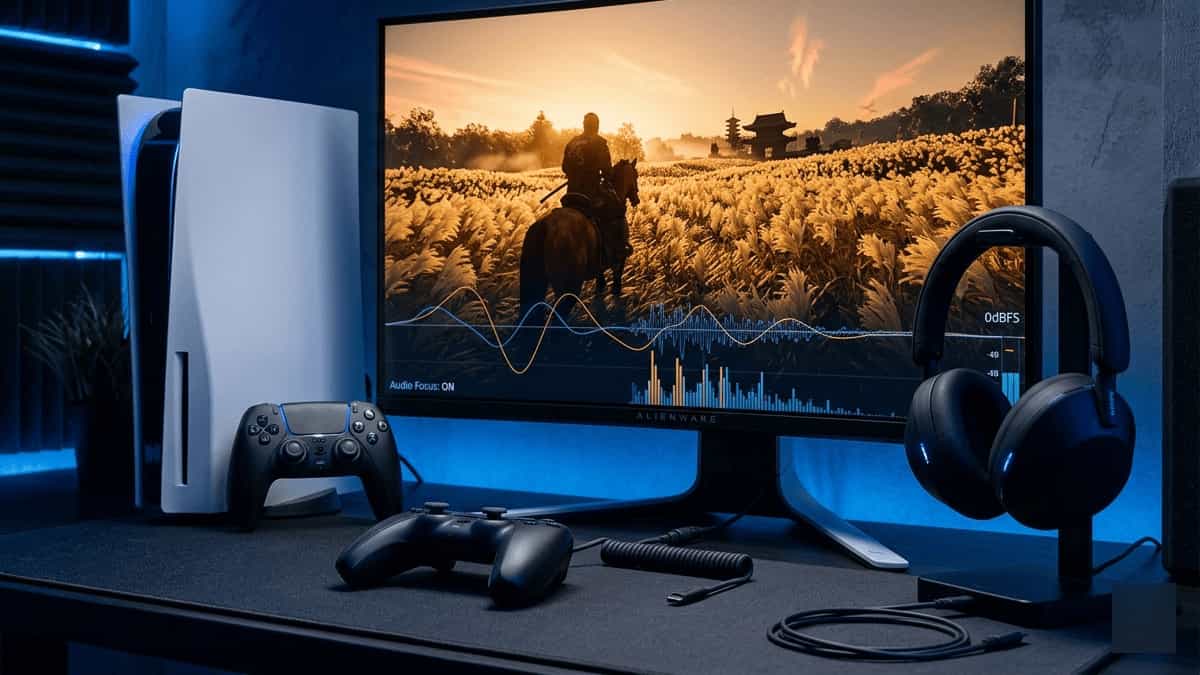
The PS5’s 3D Audio engine is one of its most immersive features, allowing you to hear the wind in the trees and the direction of Mongol archers with pinpoint accuracy. However, some players experience “Muffled” sound or incorrect directional cues, where the audio feels “Flat” or doesn’t match the visuals on screen.
If your 3D audio is lacking the clarity of a samurai’s blade on your PS5, follow these steps to recalibrate it.
Steps
Step 1: Calibrate Your 3D Audio Profile
(System Level)
The PS5’s 3D Audio is highly dependent on your specific ears and the type of audio hardware you are using. If the sound feels “Muffled,” it is likely because your current 3D Audio profile is not optimized for your specific height or ear shape.
- Go to PS5 Settings → Sound → Audio Output.
- Select “Adjust 3D Audio Profile” and choose one of the five profiles that sounds “Level” with your ears.
- Select a profile that provides the clearest directional cues for each of the three test sounds.
Step 2: Check “3D Audio for TV Speakers”
(System Level)
If you are not using headphones, ensure that you have only enabled 3D Audio for the correct output source. Enabling “3D Audio for TV Speakers” when using a standard stereo TV can often cause have sounds sound muffled.
- Go to Settings → Sound → Audio Output.
- Try toggling “Enable 3D Audio for TV Speakers” OFF.
- If the audio clarity returns after disabling 3D Audio, the issue is related to the acoustic signature of your room and your TV hardware.
Step 3: Toggle “3D Audio” in the Game Menu
Ghost of Tsushima has its own internal 3D Audio settings that can occasionally conflict with the system-level settings on the PS5.
- Go to Options → Audio → 3D Audio.
- Ensure the setting is toggled ON consistently.
- Try changing the Audio Output to “Headphones” even if you are using a soundbar to see if the directional clarity improves.
Step 4: Update DualSense Controller Firmware
Unexpected audio latency can sometimes be a symptom of outdated controller software miscalculating the haptic feedback used during cinematic sequences.
- Go to PS5 Settings → Accessories → Controller (General).
- Install the latest DualSense Wireless Controller Device Software via the system menu.
Step 5: Rebuild the PS5 Database
(Safe Mode)
If audio glitches (muffled sound, incorrect directional cues, popping) are occurring across all of Tsushima, the console’s system database may need a consolidating refresh.
- Turn off the PS5 completely.
- Hold the power button until the second beep to enter Safe Mode.
- Connect your controller via a data-sync USB cable.
- Select Rebuild Database. This consolidated storage clears glitches related to audio buffering and real-time rendering.
Summary
3D Audio is a technical masterpiece on the PS5. By ensuring your profile is correctly calibrated and optimizing your console’s audio processing, you’ll be able to enjoy the cinematic samurai fantasy exactly as Sucker Punch intended.
Disclaimer: Mukunda Software is a fan site and is not affiliated with Sony Interactive Entertainment or Sucker Punch Productions. For official support, please contact PlayStation Support.