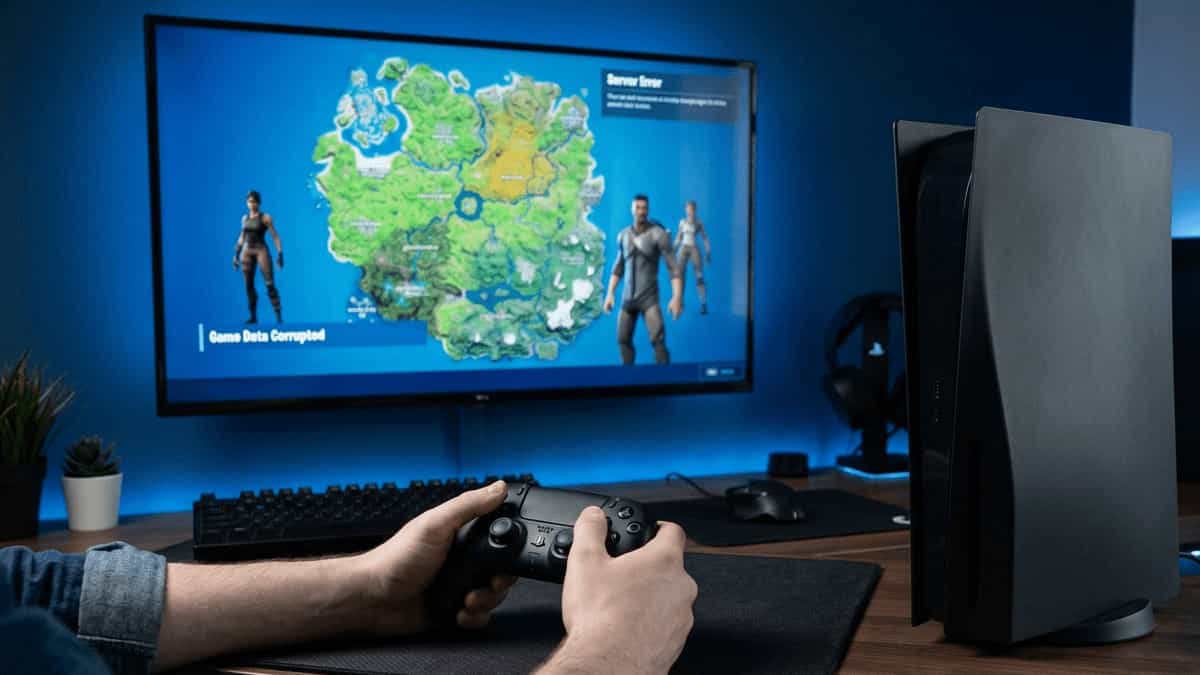
If you just tried to download a new game or update only to be met with “Something went wrong (CE-100028-1),” your PS5 has officially run out of “breathing room.”
Modern games in 2026 are larger than ever, and even if your storage looks like it has a few GB left, the PS5 requires extra space to “unpack” files during an installation. Here is how to reclaim your space.
Quick Answer: Free Up Space on PS5
- Go to Settings → Storage → Console Storage.
- Look at the breakdown of Games and Apps, Media, and Other.
- Delete unused games or move them to an external USB drive.
- If you have an M.2 SSD expansion slot, install an additional SSD (supports up to 4TB).
- Restart your console and try the installation again.
What Is Error CE-100028-1?
Error CE-100028-1 appears on PlayStation 5 when you attempt to install a game, download an update, or capture a screenshot/video, but the internal SSD does not have enough free space to complete the operation . The system will show a message like “Cannot install” or “Not enough free space.”
This error is not a hardware failure—it simply means your console’s built‑in storage is full (or close to full) and needs cleaning.
Why Does This Error Happen?
PS5 may require extra temporary space during updates, even if the update size looks small. The PS5 internal SSD has a total capacity of 825GB (or 1TB on later models), but after system software and reserved space, you typically get around 667GB usable . With modern games often exceeding 50–100GB, the drive fills up quickly.
Common triggers:
- Game installation – insufficient space for the full game.
- Game update – even small updates require additional temporary space.
- Media capture – saving video clips or screenshots with insufficient space.
- System update – firmware updates need a few GB free.
Method 1: Check Available Storage
First, confirm how much free space you have.
- Go to Settings (gear icon in the top‑right).
- Select Storage.
- Choose Console Storage.
- You’ll see a bar showing total capacity and used space.
- Also check USB Extended Storage if you have an external drive.
If free space is less than 20–30GB, you’re at risk of this error.
Method 2: Delete Unused Games and Apps
The quickest fix is to delete content you no longer play.
- In Storage → Console Storage, select Games and Apps.
- You’ll see a list of installed games sorted by size.
- Highlight a game, press the Options button, and choose Delete.
- Confirm deletion.
- Repeat until you have enough free space.
Note: Deleting a game does not delete your saved data (saved files are stored separately). You can reinstall the game later from your Library.
Method 3: Move Games to External USB Storage
If you don’t want to delete games, move them to an external USB hard drive (USB 3.0 or later). Keep in mind:
- PS5 games cannot be played from a USB drive—they must be on the internal SSD or M.2 expansion drive.
- PS4 games can be played directly from USB storage.
- Moving frees up internal space for PS5 games and updates.
- Connect a USB 3.0 drive (minimum 250GB) to your PS5.
- Go to Settings → Storage → USB Extended Storage → Format as Extended Storage.
- Once formatted, go to Console Storage → Games and Apps.
- Select a game, press Options, choose Move to USB Extended Storage.
- Wait for the transfer to complete.
Method 4: Install an M.2 SSD (Expand Internal Storage)
For a permanent solution, you can install a compatible M.2 NVMe SSD in the PS5 expansion slot. This adds internal storage that can run PS5 games directly.
Requirements:
- PCIe Gen4 x4 M.2 SSD
- Read speed ≥ 5500 MB/s (recommended)
- With or without heatsink (Sony recommends a heatsink)
- Capacity up to 4TB
Steps:
- Power off and unplug your PS5.
- Remove the side plate (follow official guide).
- Locate the expansion slot, remove the screw, and insert the SSD.
- Reassemble and power on.
- The PS5 will prompt to format the new drive.
- Set it as the default installation location.
Now you’ll have ample space for dozens of games.
Method 5: Clear Saved Data and Media
Sometimes game saves, screenshots, and video clips take up surprising space.
- Saved Data: Go to Settings → Storage → Console Storage → Saved Data.
- Delete saved data for games you no longer play.
- You can also upload saves to PS Plus cloud storage before deleting.
- Media Gallery: Go to Media Gallery from the home screen.
- Press Options on any video or screenshot and delete what you don’t need.
- Consider exporting important clips to USB before deletion.
Method 6: Rebuild Database to Free Hidden Space
Occasionally, temporary files and corrupted data can consume space that isn’t shown. Rebuilding the database can clean this up.
- Power off your PS5 completely (hold power button until you hear two beeps).
- Press and hold the power button again, releasing after the second beep to enter Safe Mode.
- Connect your controller with a USB cable and press the PS button.
- Select Clear Cache and Rebuild Database → Rebuild Database.
- Wait for the process to finish (may take several minutes).
- Restart and check free space again.
Method 7: Disable Auto-Trophy Captures
Save space automatically by stopping the PS5 from recording every time you get a “Bronze” trophy.
- Go to Settings > Captures and Broadcasts > Trophies.
- Set Save Trophy Screenshots and Save Trophy Videos to None.
How to Check What’s Taking Up Space
For a detailed view:
- Settings → Storage → Console Storage → Games and Apps → sort by size to see the biggest offenders.
- Under Media, see how much space is used by screenshots and videos.
- Under Other, you’ll see system files and temporary data. A large “Other” category can sometimes be reduced by rebuilding the database. Clear “Other” Storage: Settings > Storage > Console Storage > Games and Apps. Scroll to the bottom to see “Other.” If it’s over 50GB, Restart your console—this often triggers the system to delete temporary cache files.
FAQs
Why do I get CE-100028-1 even when I have free space?
Sometimes the system needs contiguous free space, or the update requires additional temporary space beyond what’s shown. Try deleting a small game (e.g., 10–20GB) to create enough room.
Can I install PS5 games on an external USB drive?
No. PS5 games can only be stored and played from the internal SSD or an installed M.2 SSD. USB drives can store them, but you’d need to move them back to internal to play—so it’s not practical.
How much free space should I keep on the internal SSD?
Aim for at least 20–30GB free. Game updates and system patches often need that much.
Will deleting a game delete my progress?
No. Game saves are stored separately. You can reinstall the game later and resume from where you left off.
I have an M.2 SSD installed, but the error still appears.
Make sure your installation location is set correctly if using an M.2 SSD: Settings → Storage → Installation Location → choose the M.2 drive.
By keeping your storage organised and leaving enough free space, you can avoid the CE-100028-1 error and enjoy uninterrupted gaming.
Further Reading
If you’re optimizing your PlayStation experience, these guides might help: