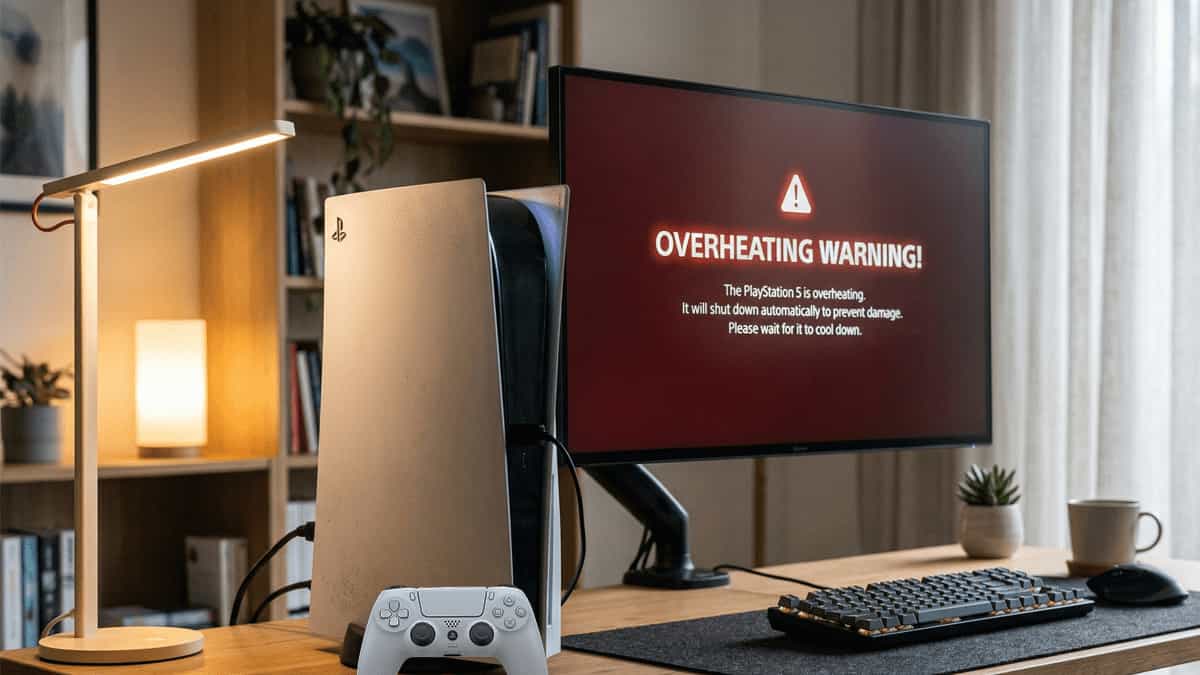
Is your PS5 making a loud buzzing sound, or worse, shutting off in the middle of a game with a “Your PS5 is too hot” warning? This usually means the console’s cooling system is “choking” on dust or lack of air.
This guide will walk you through exactly how to cool it down safely, even if you’ve never opened a piece of electronics before.
Quick Answer: Stop PS5 Overheating Now
If your PS5 suddenly shuts down with an overheating warning:
- Immediately turn it off and unplug for 15 minutes.
- Move the console to an open, well‑ventilated area—no enclosed cabinets.
- Clean the dust from the side panels and fan vents using a vacuum or compressed air.
- If the problem persists, the liquid metal thermal compound may have shifted or the fan may be faulty—consider professional repair.
Why Your PS5 Overheats: Main Causes
Poor airflow (like closed cabinets) can trap heat and cause shutdown. The PS5’s cooling system is sophisticated, but several issues can cause it to overheat:
| Cause | Description |
|---|---|
| Poor ventilation | Console placed in a tight cabinet, against a wall, or on carpet that blocks airflow. |
| Dust buildup | Dust clogs the internal heatsink and fan, reducing cooling efficiency. |
| Liquid metal pump‑out | In some units, the liquid metal thermal interface material can shift away from the APU die, creating hotspots. |
| Faulty fan | The cooling fan stops working or runs at insufficient speed. |
| Ambient temperature | Room temperature above 30°C (86°F) can push the console over its thermal limit. |
| Power supply issues | Rarely, the power supply may overheat due to internal dust. |
Method 1: Proper Placement & Ventilation
This is the simplest fix—and often the only one needed.
- Place your PS5 horizontally or vertically on a hard, flat surface (not carpet, not a cloth).
- Ensure at least 10 cm (4 in) of clearance around all sides, especially the back (where hot air exhausts).
- Never put the console inside a closed cabinet or entertainment center without airflow.
- Avoid stacking other electronics on top or next to the PS5.
If your PS5 is in a tight space, relocate it to an open area and test again.
Method 2: Clean Dust from Your PS5 (Step by Step)
Dust accumulation is the most common cause after placement issues. You don’t need to fully disassemble the console for a basic clean. PS5 has built-in “dust catcher” holes designed for easy vacuum cleaning.
What You’ll Need
- A soft brush or vacuum with a brush attachment
- Compressed air (optional)
- No tools required for side panel removal
Steps
- Power off and unplug the PS5.
- Remove the side panels:
- Place the console on a soft surface (like a towel) to avoid scratches.
- For the standard PS5, pull the top‑right corner of the panel outward and slide it off.
- Repeat for the other side.
- Clean the fan intake: Use a vacuum or compressed air to gently remove dust from the fan vents on both sides.
- Clean the heatsink fins: Shine a flashlight through the fan openings; you’ll see the heatsink. Carefully blow compressed air (short bursts) to dislodge dust.
- Clean the bottom vents (if using vertical stand).
- Reattach panels by sliding them back until they click.
- Plug in and test.
Warning: Do not use a vacuum directly on the fan blades without holding them still—spinning them can generate voltage and damage the motherboard. Use short bursts of compressed air or a soft brush.

Method 3: Check the Fan and Liquid Metal (Advanced)
Rare cases may involve liquid metal imbalance, which requires professional repair. If cleaning doesn’t help, the problem may be internal hardware.
Fan Test
- While the console is running, listen near the back. You should hear a steady, quiet whoosh. If the fan is silent or making a grinding noise, it may be faulty.
- You can run a fan test in Safe Mode:
- Enter Safe Mode (hold power button, release after second beep).
- Select Clear Cache and Rebuild Database → the console will check systems.
Liquid Metal Issue
Some early PS5 units have had the liquid metal thermal compound shift away from the APU, creating a dry spot that causes overheating even under light load. Symptoms:
- Overheating after just a few minutes of gameplay.
- Shutdown occurs even with the console in an open area.
- No fan noise or dust issues.
This requires professional repair. Contact Sony or a reputable console repair shop. Under warranty, Sony may replace the unit. Out of warranty, repair costs typically range from $150–$250.
Method 4: Disable Rest Mode (Temporary Workaround)
Some users report that Rest Mode can cause the console to stay warm and accumulate heat over time, leading to overheating shutdowns.
- Go to Settings → System → Power Saving → Features Available in Rest Mode.
- Uncheck Stay Connected to the Internet and Enable Turning On PS5 from Network (if not needed).
- Alternatively, simply turn off the console fully instead of using Rest Mode.
This is not a permanent fix but can reduce thermal load until you resolve the root cause.
Method 5: Rebuild Database & Update Firmware
Sometimes system software glitches can cause fan speed to not ramp up correctly.
- Update system software: Settings → System → System Software → System Software Update and Settings.
- Rebuild database:
- Power off completely.
- Enter Safe Mode (hold power button, release after second beep).
- Select Clear Cache and Rebuild Database → Rebuild Database.
- Wait for completion and restart.
This won’t fix hardware issues but ensures the cooling control software is working properly.
When to Contact Sony for Repair
Seek professional help if:
- The console still shuts down after cleaning and proper placement.
- You hear a loud grinding from the fan.
- You see a persistent blue light followed by shutdown without warning.
- Your console is under warranty (Sony usually covers overheating issues).
Contact Sony Support: Visit PlayStation’s official support site to start a repair request. In the US, call 1‑800‑345‑7669.
Prevention Tips: Keep Your PS5 Cool
- Regular cleaning: Vacuum vents every 3–6 months, especially if you have pets or live in a dusty area.
- Use a vertical stand: The official stand elevates the console, improving bottom airflow.
- Avoid direct sunlight: Sunlight heats the console significantly.
- Control room temperature: Keep your gaming area below 30°C (86°F) for optimal performance.
- Don’t block exhaust: Never place the console on soft surfaces like beds or carpets.
- Consider a cooling fan? Most third‑party fans are unnecessary; proper placement and cleaning are more effective.
By keeping your PS5 clean, well‑ventilated, and properly maintained, you can avoid overheating shutdowns and enjoy years of uninterrupted gaming.
FAQs
Is it normal for the PS5 to get hot?
Yes, the PS5 runs warm, especially during demanding games. But shutting down with an overheating warning is not normal.
Can I use my PS5 vertically if I’m worried about liquid metal?
Sony designed the console to work in either orientation. However, if you suspect liquid metal migration, placing it horizontally may help. If you’re concerned and under warranty, contact Sony.
How often should I clean my PS5?
Every 6 months is a good baseline. If you smoke, have pets, or live in a dusty environment, clean every 3 months.
Will opening my PS5 void the warranty?
Removing the side panels (the white covers) does not void the warranty—Sony designed them to be removed for cleaning. Opening internal components, like the fan or heatsink assembly, will void warranty.
Why does my PS5 overheat in Rest Mode?
Rest Mode keeps the console in a low‑power state. Dust buildup or poor ventilation can cause residual heat to accumulate. Disabling Rest Mode or cleaning the console often solves this.
Further Reading
If you’re tackling other PS5 issues, these guides may help: