
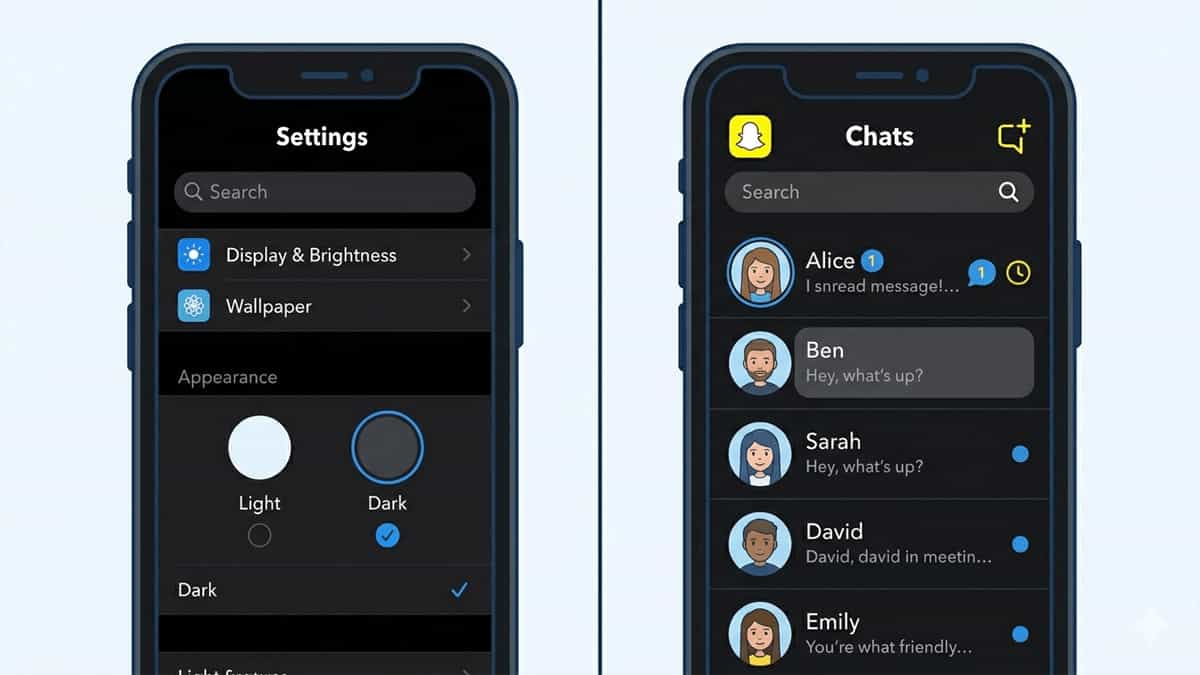
Tired of Snapchat’s bright white background blinding you at night? Dark mode isn’t just easier on the eyes—it also saves battery on OLED screens. Unlike many apps that have a simple toggle, Snapchat’s dark mode works a bit differently. It follows your system-wide dark mode settings rather than offering an in-app switch. This guide shows you exactly how to enable dark mode on Snapchat for both iPhone and Android, plus a workaround if it’s not working.
Does Snapchat Have Its Own Dark Mode Toggle?
No. Unlike Instagram or Twitter, Snapchat does not have a “Dark Mode” button inside its settings. Instead, Snapchat automatically switches to dark mode when your phone’s operating system is set to dark theme. This applies to Snapchat version 12.0+ on both iOS and Android.
How to Turn On Dark Mode on Snapchat (Step by Step)
On iPhone (iOS 13+)
- Open your iPhone Settings app (not Snapchat).
- Scroll down and tap “Display & Brightness”.
- Under Appearance, select “Dark”.
- Optional: Enable “Automatic” to switch dark mode at sunset or custom times.
- Open Snapchat. The app should now appear with dark backgrounds, dark chat screens, and dark camera UI elements.
On Android (Android 10+)
Method may vary slightly by phone manufacturer (Samsung, Google Pixel, OnePlus, etc.), but the core is the same:
- Open Settings on your Android phone.
- Tap “Display” (or “Wallpaper & Style” on some devices).
- Look for “Dark theme” or “Dark mode” and toggle it ON.
- Open Snapchat. The app will automatically switch to dark mode.
Samsung One UI users: Go to Settings → Display → Dark mode → turn on.
Google Pixel stock Android: Settings → Display → Dark theme → turn on.
What Parts of Snapchat Turn Dark?
- Chat screen backgrounds
- Friend list and profile menus
- Settings page
- Story viewer (dimmed UI)
- Camera shutter button and icons
Note: The camera viewfinder itself remains bright (because it’s showing live camera feed), but surrounding UI turns dark.
Dark Mode Not Working? Try These Fixes
- Restart Snapchat: Force close the app and reopen it after enabling system dark mode.
- Update Snapchat: Go to App Store or Play Store and install the latest version.
- Check for “Override Force-Dark” (Android Developers Option): Some Android users accidentally enable this. Disable it in Developer Options.
- Reinstall Snapchat: As a last resort, delete and reinstall the app (you won’t lose memories if backed up).
Can You Get Dark Mode Without Changing System Theme?
Not officially. Some third-party “dark mode” apps or overlays exist, but they violate Snapchat’s terms and may get your account temporarily locked. Stick to the system method.
Quick Recap
| Device | Steps |
|---|---|
| iPhone | Settings → Display & Brightness → Dark |
| Android | Settings → Display → Dark theme |
Once system dark mode is on, Snapchat follows automatically. No in-app toggle needed.
You May Like to Read:


